Create and edit products
Create product opens the full form. An existing product opens with a click on its row; the form is the same.
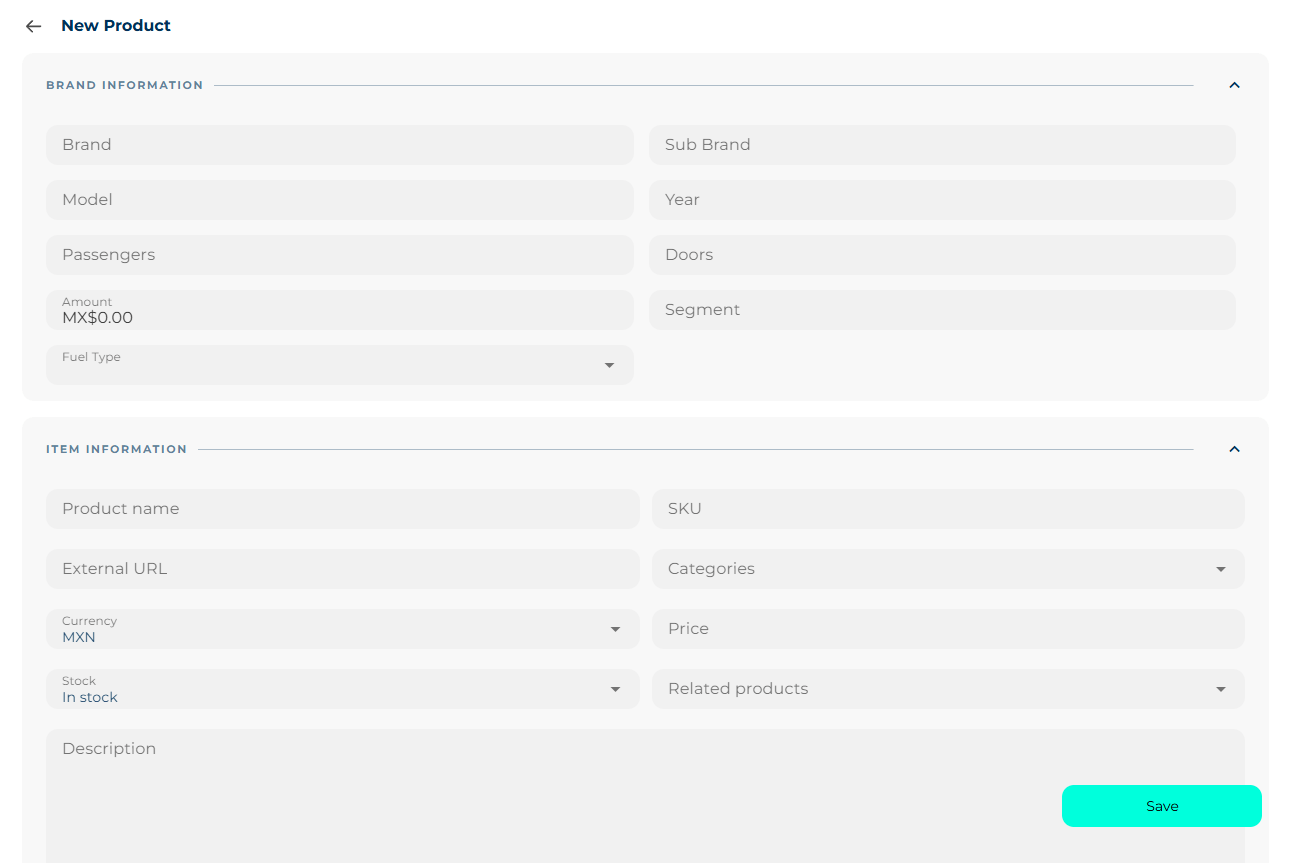
At the top, the product name and the Market active / inactive switch: an inactive product exists in your catalog but is not offered.
Item information
| Field | What for |
|---|---|
| Product name * | How the agent will name it. |
| SKU | Your internal code. |
| External URL | Link to the product page on your site. |
| Categories | One or several. You can create a new one from the same selector. |
| Stock | In stock / Out of stock. |
| Related products | To suggest add-ons. |
Media
At least one image is required, and every image and PDF needs a description — that is what the agent reads to know what it is showing.
- Images: drag the files in or click to upload.
- Videos: upload them (max 100 MB) or paste a URL.
- PDFs: spec sheets, manuals. Max 5 MB each.
Without a description, the agent does not know what it is sending
The image description is not decorative: it is the text the agent uses to decide whether that photo answers what the customer asked for. "Front of the sedan in grey" works; "photo 1" does not.
Prices and offers
A product can have up to 4 offers, and each offer up to 3 sales:
- Offer: type, currency and base price.
- Sale: selling price, start date and end date, plus a justification.
If a product has several offers, the list shows Price from with the lowest.
Promotions and discounts
Add discount lets you pick the type:
by percentage, by fixed amount, by quantity, by volume, by first purchase, by loyalty, by season or special events, by early purchase, by referral, bundled, by membership, for students, seniors or veterans, by coupons and on shipping.
Depending on the type, it asks for the percentage or amount, the minimum purchase amount and the product quantity.
Variations
A variation is the same thing in another presentation: size, color, trim. Each variation has its own price, stock, SKU, currency, offers and media.
- In Variations, click Create variation.
- Define the options that distinguish it (max 3): for example Color: red, Size: M.
- Fill in price, stock and the rest.
- For media you can select from the main product's images instead of uploading them again.
Each variation can be duplicated or deleted permanently.
Duplicate, archive and delete
- Duplicate (on the list row): creates a copy with everything, including its variations. The quick way to load similar products.
- Archive: removes it from the list and from the agent's reach, but keeps it. Recover it from Archived with Unarchive.
- Delete permanently: no recovery.
Bulk editing
Edit in block opens a view to work on prices and offers for many products at once, with a search by brand, product, SKU or bank, a filter by offer status (active, inactive, draft, expired), and expand / collapse all. At the top you see the count of products, variations, offers and active offers. Changes are applied with Save changes.