Filters and search
With hundreds of open chats, finding the right one is the job. The chat list has three tools: search, space and filters.
Search
The search box at the top has two modes:
- Search by name: filters by contact name. It is instant.
- Search by word: searches inside message content. It takes a bit longer because it scans history.
In both cases you see how many chats match. If there are no results for a WhatsApp number, the Send new WhatsApp message button takes you straight to start a chat.
Space
The space selector (above the list) narrows the view to one service area: sales, support, a branch. All my spaces shows everything you are allowed to see.
Filters
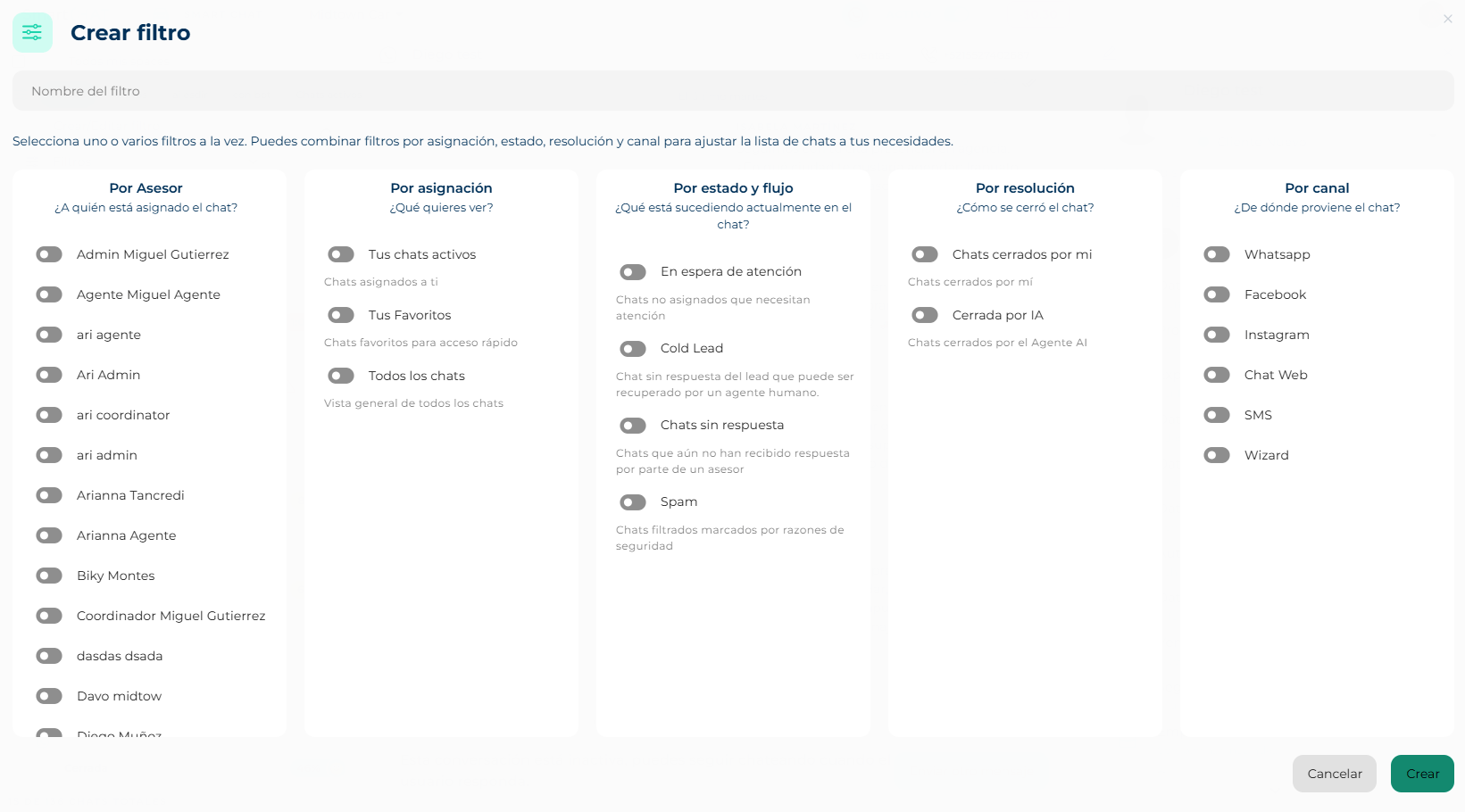
A filter combines conditions from five groups. Turn on as many as you like:
| Group | Question it answers | Options |
|---|---|---|
| By advisor | Who is the chat assigned to? | One or several team advisors. |
| By assignment | What do you want to see? | Your active chats, All chats, Your favorites. If you picked advisors above, Active chats of [advisor]. |
| By status and flow | What is happening in the chat? | Cold Lead, Unanswered chats, Waiting for advisor, Spam, With KB Flows bot, Bulk. |
| By resolution | How was it closed? | Closed by me, Closed by AI, Closed by AI – I was the last advisor, Closed automatically. |
| By channel | Where does it come from? | WhatsApp, Facebook, Instagram, Web, SMS, Wizard. |
Create a saved filter
- Click the filters button in the list, then Create filter.
- Give it a name (up to 15 characters; it shows on the tab).
- Turn on the switches of the conditions you want to combine.
- Create. The filter appears in the saved filters list.
From the list you can edit, delete (asks for confirmation) or mark as favorite a filter. Favorites are added as tabs next to the fixed ones (All, Active, With bot) above the list, to switch views with one click. Maximum 3 favorites.
Three tabs that get you through the day
A combination that works for most advisors: Mine (your active chats), Waiting (waiting for advisor) and Unanswered (unanswered chats). With that you see what is urgent without touching anything.
Team and sorting
- The Team button switches the list to internal chats with your colleagues and groups.
- The sort button toggles between newest first and oldest first.