Biky admin
The AI agent serves, qualifies and sells for you across your channels. In the Biky admin module you define how it speaks, what it knows and what it can do.
The agent is not always called Biky
You give it whatever name you want under Appearance. Throughout these docs we call it the agent.
When you open the module (General screen), the agent greets you — I'm [name] — and shows the personalization it is using in six cards: Personality, Appearance, Personalization, Skills, Intentions and Knowledge. Each card leads to its section. This page covers the Personalization card, which opens the basic personalization.
Where to start
The module's sections can be touched in any order, but one order saves you from redoing work: first how it sounds, then what it knows, and last what it can do. Turn the skills on before loading the knowledge and the agent will be able to look up a catalog it knows nothing about.
- Appearance — give it a name and a face. It goes first because the name shows up everywhere else, including the greeting on this screen.
- Personalization (this page) — the language, the tone and the emojis. Two minutes, and it completely changes how every answer reads.
- Personality — who it is and how it behaves: its role, what it should and shouldn't do.
- Knowledge — what it knows about your business. It is the step that changes answer quality the most and the one most people skip. Without it, the agent answers in generalities.
- Skills — what it can do: look up the catalog, book, transfer. Turn them on once the thing they look up actually exists.
- Intentions — what to do about specific cases you want to control yourself.
- Simulator — talk to it before letting it loose. It is the only way to see what your customer will see without spending a real conversation.
Go back to the simulator after every change
It is not a final step, it is what closes each round. You change the tone, you simulate; you load a document, you simulate. Finding out in the simulator that the agent answers something odd costs a minute; finding out through a customer costs the customer.
Basic personalization
The minimum set of settings that define how the agent sounds in every conversation: which language it replies in, how formal it is, whether it uses emojis, and whether it sends your terms and conditions notice. Everything else (personality, knowledge, skills) builds on this.
Every change is saved instantly and applies to new conversations from that moment on.
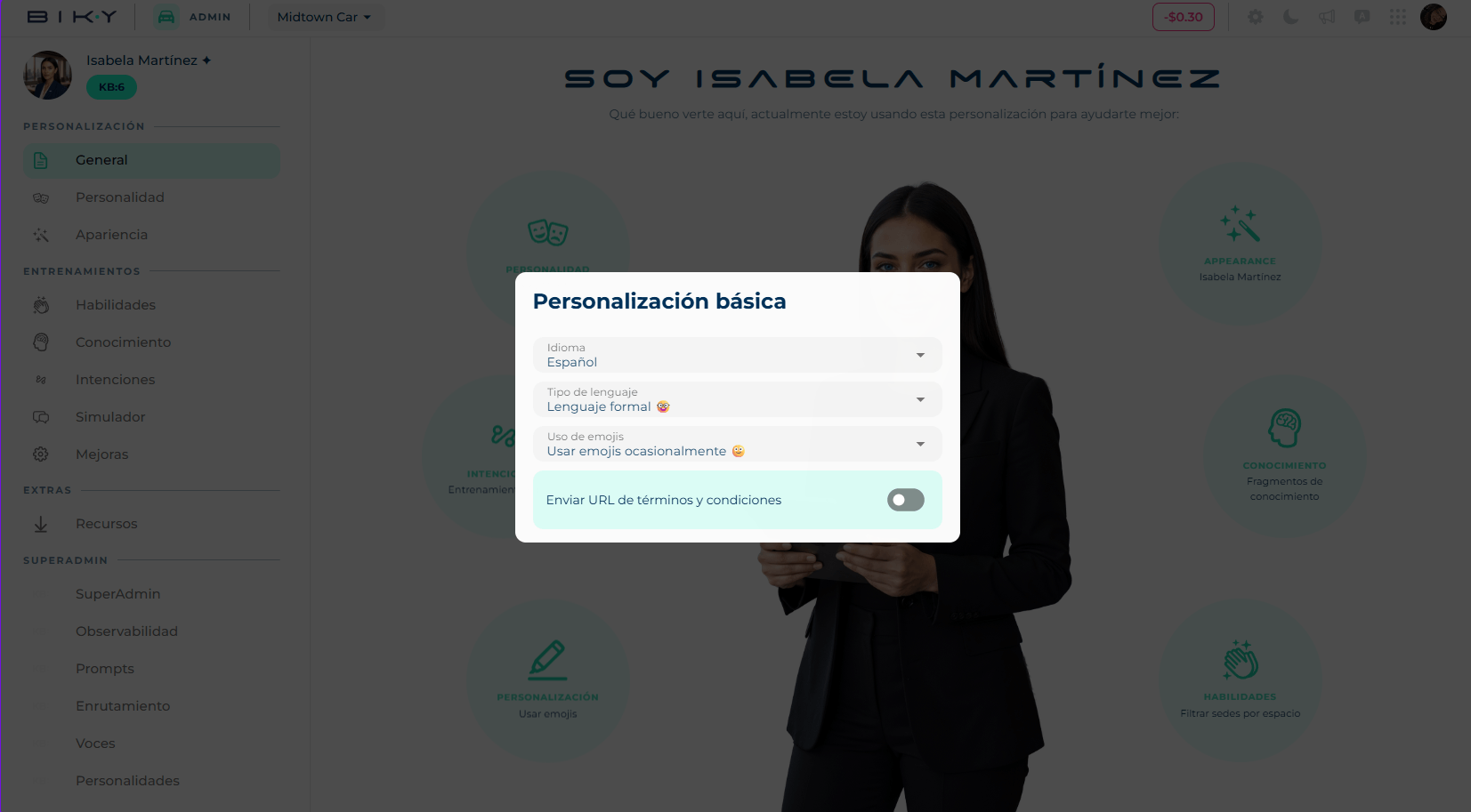
Language
Default language the agent writes its replies in. Options: Spanish, English, Portuguese, French and Italian.
It is the starting language: if a customer writes in another language, the agent detects it and answers in the customer's language. Pick the one most of your contacts use.
Language type
How formal the tone is. From most relaxed to most serious:
| Option | How it sounds |
|---|---|
| Very informal language 😎 | Close and easygoing, like a friend. Colloquial expressions. |
| Informal language 😉 | Friendly and direct, without stiffness. The middle ground for most businesses. |
| Formal language 🤓 | Cordial and professional. No slang. This is the default. |
| Very formal language 🧐 | Protocol-driven. For banking, healthcare, legal or corporate customers. |
The tone should match your brand: a skate shop and a clinic should not sound the same.
Emoji usage
How much the agent uses emojis when writing:
- Always use emojis 😊 — in almost every message. Adds warmth on channels like WhatsApp or Instagram.
- Use emojis occasionally 🙂 — only when they add something, such as greetings or confirmations. The recommended balance.
- Do not use emojis 🫥 — never. For very formal tones or channels where they look off (corporate email).
Combine with the language type
"Very formal" with "always use emojis" contradicts itself. Naturally, the more formal, the fewer emojis.
Send terms and conditions URL
Switch that decides whether the agent, when starting a conversation with a new contact, sends the personal data processing notice (habeas data) with a link to your terms and conditions.
- On: the Terms URL field appears. Paste the address of your policy (for example
https://yourcompany.com/terms). If you leave outhttps://, it is added for you. The agent includes that link in the notice. - Off: the agent does not send the notice or ask for acceptance.
Legal compliance
In several countries (Colombia, Mexico, Brazil, the European Union) informing about data processing is mandatory before collecting a contact's data. Turn the notice off only if you already cover it another way.
How to edit it
- Open the Biky admin module from the modules menu.
- On the General screen, click the Personalization card.
- Change the language, language type or emoji usage. Each selection saves on its own.
- If you want to send your terms and conditions, turn on the switch and paste the URL.
- Close the dialog. The agent is already using the new settings.
What else you can configure
From the module side menu you reach the rest of the sections:
- Personalization: Personality and Appearance.
- Training: Skills, Knowledge, Intentions and Simulator.
- Extras: Resources.