Availability and configuration
What determines whether a slot shows as free: your weekly schedule, your blocks, your external calendars and the business rules.
How to get your calendar ready
Four steps, in this order. While any of them is missing, the agent will offer the wrong slots — or none at all.
- Connect your external calendar (Google or Outlook), under Calendars. It goes first because it prevents the most expensive mistake: the platform offering a slot where you already have another meeting.
- Load your weekly schedule, under My schedule. Switch on the days you work and set a start and end time for each. An advisor with no schedule never shows up as available.
- Create your blocks, under Blocks: lunch, Monday's team meeting, vacation. Anything recurring is set once with Weekly recurrence.
- Set the default duration, under Business config. It decides how the slots are cut: at 60 minutes, times come out on the hour.
If you are an admin, once you've done it yourself go through Advisors: it shows at a glance who on the team is still Incomplete.
My schedule
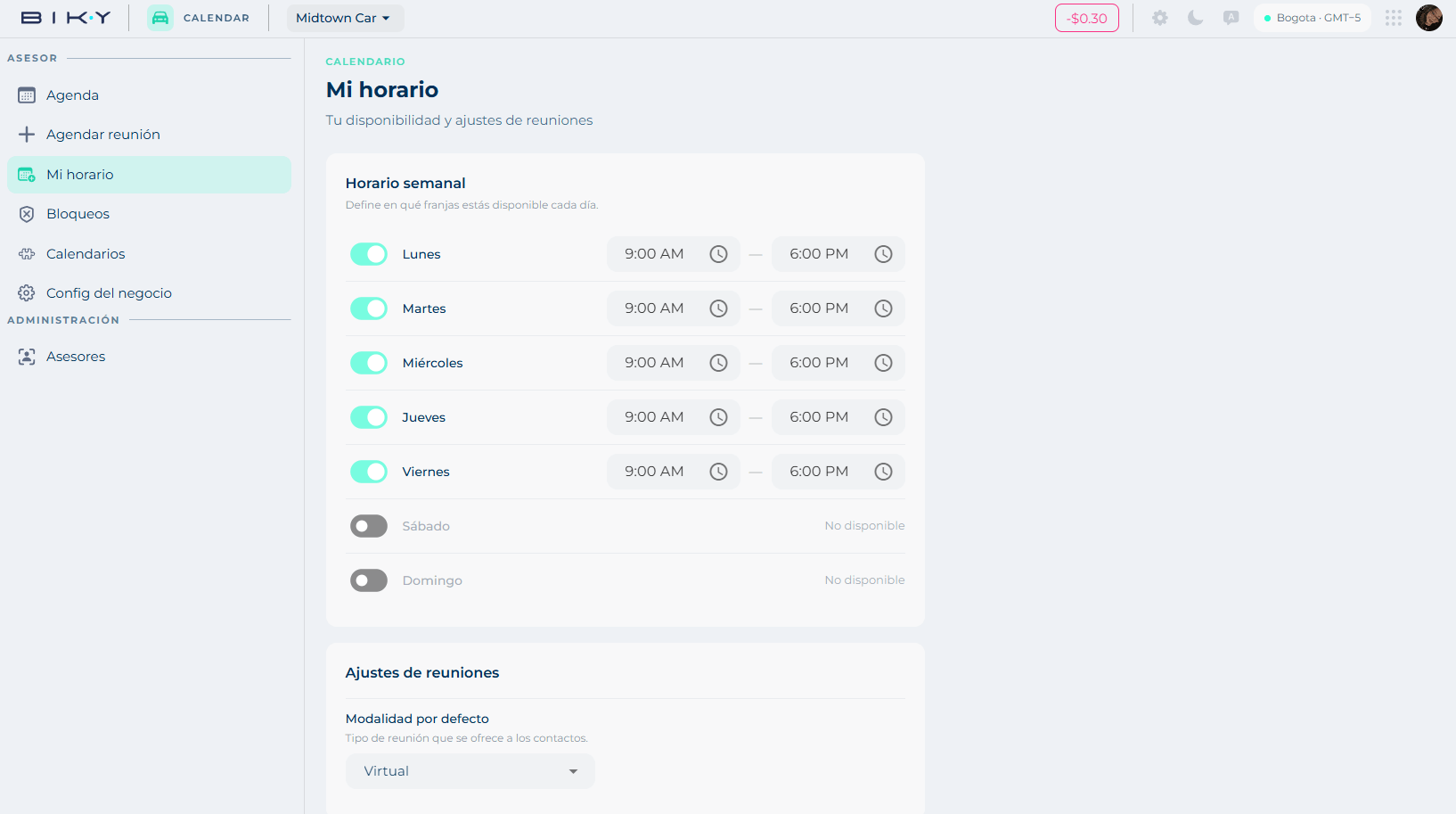
Weekly schedule — Define which slots you are available in each day. Every day from Monday to Sunday has a switch and, if it is on, a start time and an end time. Days that are off show Not available.
Meeting settings — Default modality: the type of meeting offered to contacts, Virtual or In person.
Save applies the changes.
Your schedule is what the agent promises
If you leave Friday open until 6 pm but in practice you leave at 3, the agent will book appointments at 5. The weekly schedule is not an aspiration: it is a commitment.
Blocks
Define when you are not available: holidays, a training session, lunch, a trip.
Two tabs:
- Advisor blocks: yours (or those of the advisor you pick in the selector).
- Business: the ones that apply to the whole account — public holidays, inventory closing.
While there are none, the screen says No blocks · Create a block to reserve unavailable time.
+ New block opens a panel with:
| Field | What it is |
|---|---|
| Title | E.g. Lunch, holidays… |
| Scope | Advisor blocks or Business. |
| Recurrence | One-off (once) or Weekly (repeats every week). |
| Dates | The range, day to day. |
| Start time and End time | The blocked slot. |
Save block applies it.
Calendars
Connect your external calendars. Busy events will be automatically deducted from your availability.
- Google Calendar — Connect / Disconnect
- Outlook Calendar — Connect / Disconnect
Each one shows whether it is Connected or Not connected.
Connect your calendar on day one
It is the setting that prevents the most problems. Without it, the platform does not know you have an internal meeting on Tuesday at 10 and will offer that slot to a customer.
Business config
Scheduling rules and default values.
- Default duration — duration of new meetings: 30, 60, 90 or 120 minutes.
Save applies the change. This duration is what is used to calculate the availability blocks when booking: with 60 minutes, slots come out on the hour.
Reminders
Automatic appointment reminders are not configured here: Flows builds them with the A scheduling reminder is triggered trigger. When you confirm a meeting, the platform notes that they will be sent.
Advisors
The Advisors section (Administration group) lists the whole team with:
| Column | What it shows |
|---|---|
| Advisor | Name and email. |
| Schedule | Their availability summarized (Mon–Fri 08:00–18:00, Sat 08:00–12:00) or No schedule. |
| Calendars | The external calendars they connected. |
| Status | Active if they have a schedule loaded; Incomplete if not. |
The arrow on each row opens their configuration.
"Incomplete" means invisible
An advisor with no schedule does not appear when searching availability. If your team books little or all appointments land on the same person, this screen usually has the answer: check how many are Incomplete.