Handle a conversation
From opening a chat to closing it: take control, reply well and fast, and leave the chat in the right state.
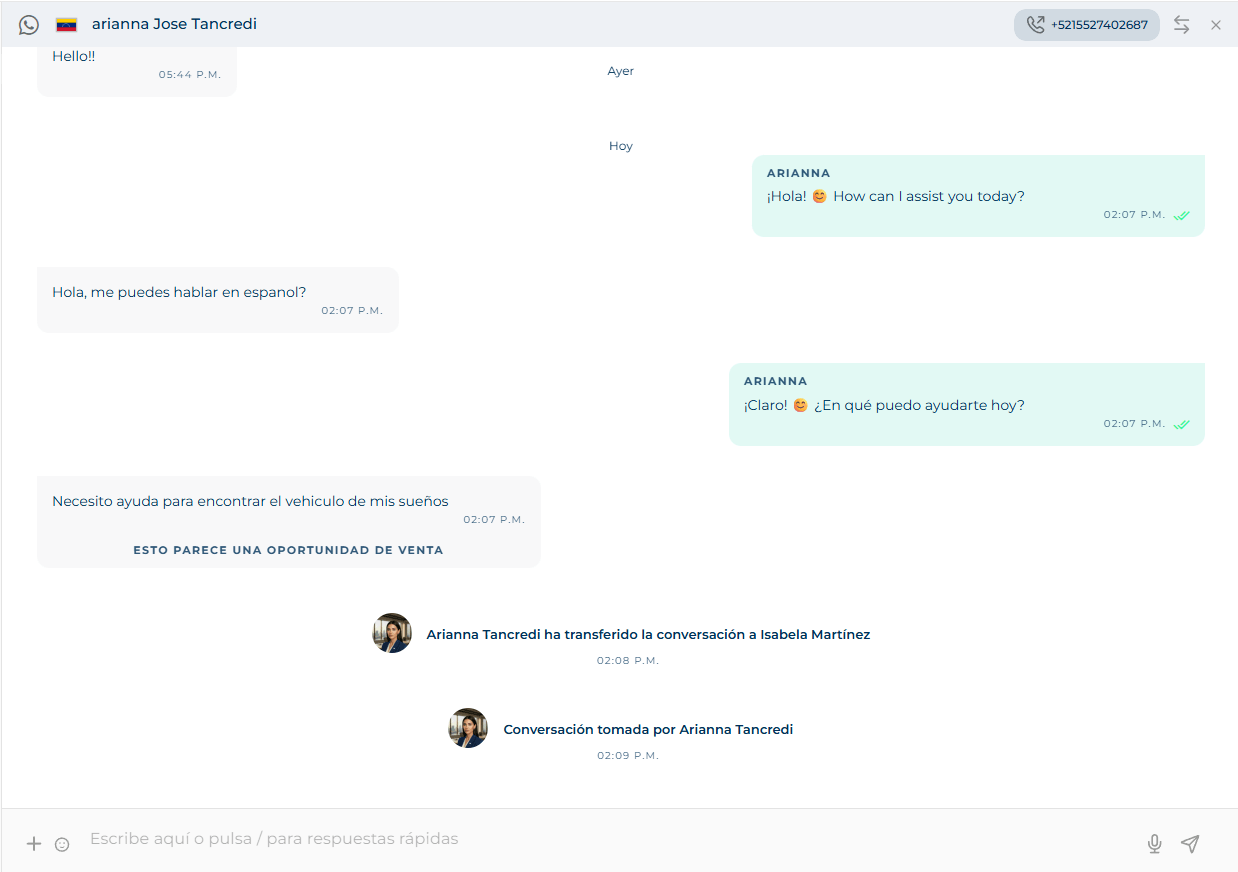
Take the chat
When you open a chat, the composer may be locked with a notice. Each notice tells you what is going on and what you can do:
| Notice | What it means | What to do |
|---|---|---|
| This conversation is already being handled by [name] | The agent or another advisor has it. | Take conversation. If the agent has it, it first asks Boss… I can do my job well 😌 What did I do wrong?: write the reason (at least 50 characters) and Transfer anyway, or Let me do my job to leave it. |
| This conversation is not being handled | It is waiting, with no advisor. | Take conversation. |
| This conversation was closed, but you can still resume it | It is closed. | Take conversation to reopen it. |
| This conversation is inactive, you can keep chatting when the user replies | Too much time passed since the customer's last message and WhatsApp no longer allows free-form messages. | Wait for the customer to write, or Send another message to send an approved template. See Start a chat. |
| More than 7 days have passed since the user's last message… | Meta's rule for Facebook and Instagram. | You can only reply once the customer writes again. The I want to know more link opens Meta's policy. |
| This user is blacklisted | The contact is blocked. | Unblock them from the contact card if appropriate. |
| This line is not available | The chat's WhatsApp line is no longer in your account. | Send another message from a different line. |
Balance
Taking a conversation requires account balance. If there is not enough, the platform will not let you take it and, if you are an administrator, sends you to top up in Billing.
Reply
The composer at the bottom is the center of everything. Its placeholder says it: Write here or press / for quick replies.
Text: type and press Enter to send. You can reply to a specific message (it shows quoted above the composer; the × cancels the quote).
Attach: the composer's + button opens three options — Media (images, files, videos), Quick replies and Location. On the right are the microphone to record a voice note and the send button; on the left, the emoji picker. You can also drag files straight onto the chat (Drop the file here).
Quick replies: with the composer empty, press /. The predefined replies search opens, organized by type — Text, Products (from the catalog), Image, Video, PDF — and filtered by name. Move with the arrow keys and Enter to send; Esc closes. Replies are managed under Settings.
Agent suggestion: in some chats [agent name] suggests replying… appears with a proposed message based on context. Use suggestion sends it.
Forward: from a message's menu you can forward it to another chat.
Transfer
The Transfer button in the header opens a panel organized by space. Inside each space you pick the destination:
- Any advisor: the first available one in that space takes it. (Not available for the agent role.)
- The agent: you hand the conversation back to the AI (it appears under the name you gave it).
- A specific advisor: search by name. If they are offline, the platform warns you ([name] is offline) and you can Transfer anyway.
Close
The Close button in the header (only on open chats) shows the list of closing reasons your account defined, with a search box. Pick the reason and the chat closes. Reasons feed the Metrics.
If the chat ended in a sale, the same menu has Create SalesCard: you record the sale in Funnels and the chat closes with reason sale.
Actions on several chats
In the list, each chat has a menu with Mark as unread / read, Select, Transfer and Close. With Select checkboxes appear: tick several (or the all check at the top of the list) and use the Transfer and Close buttons that appear in the top bar. They open the same panels as for a single chat and apply to every selected one.
Close in bulk at the end of your shift
Filter Your active chats, select the ones you already resolved and close them together with the same reason.
Calls
If your account has voice lines, from the contact card you can call the customer by phone. You can also place a WhatsApp call, which requires having taken the chat and the customer having authorized calls: the full path is under WhatsApp calls. Either way the call shows in a window you can minimize while you keep chatting.