Contact card
Click the customer's name in the chat header and their card opens on the right: it is the same contact as in the CDP, editable without leaving the conversation. Anything you change here is saved to the CDP.
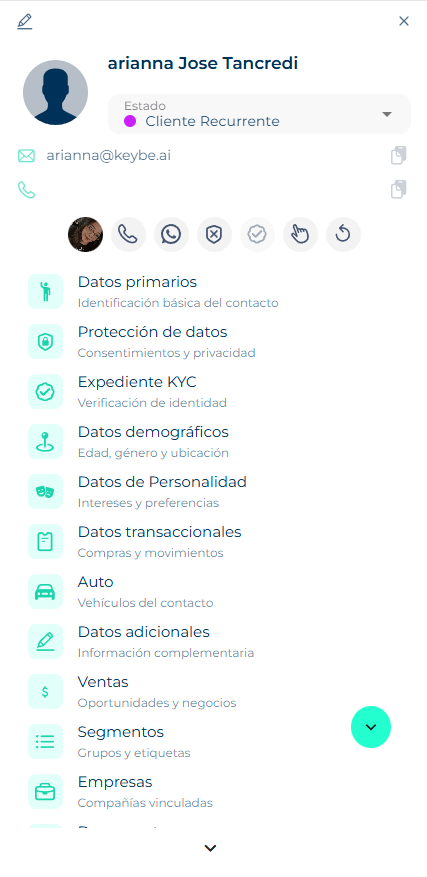
Card header
At the top are the photo, the name and the contact's Status (for example Recurring customer), which you can change from the dropdown. Below, the email and phone, each with a copy button.
Quick actions
The row of icons under the contact data:
| Action | What it does |
|---|---|
| Owner | Shows who owns the contact in the CDP; click to reassign. |
| Call | Voice call through the account's lines. If no lines are configured, it takes you to the Call Hub. |
| Call Contact via WhatsApp | Voice call over WhatsApp, inside the chat. It has its own permission path: see WhatsApp calls. |
| Block / Unblock | A blocked contact cannot receive messages; the composer shows blacklisted. Useful against spam. |
| Verify | Starts the contact's identity verification (KYC). |
| Touches | Logs a manual touchpoint (call, visit, email) as an activity. |
| Reload | Fetches the contact data again in case another advisor changed it. |
WhatsApp calls
WhatsApp lets you call the customer by voice inside the chat, with no telephony minutes involved. It is not as direct as pressing a button: Meta requires the customer to authorize calls first. The Call Contact via WhatsApp button on the card walks you through that path, and its color tells you where you are.
1. Enable calls on the line
First the WhatsApp line must have calls enabled. It is done once, under Settings → Channels → WhatsApp, on the line you are going to use.
Until the line has them, the button is red and warns: This whatsApp line has not enabled calls. To enable click the button or go to Configure > Channels > WhatsApp. Clicking takes you straight to that screen.
2. Ask the customer for permission
With the line ready, the person's permission is still missing. Meta does not allow calling someone who has not accepted.
If the contact has not answered yet, the button reads The user has not enabled WhatsApp calls. Click to send authorization template. Clicking sends it: the notice We're sending a template to the user to verify call acceptance appears and the customer receives, in their WhatsApp, a message where they accept or decline.
While they do not answer, the button turns yellow: Waiting for user to authorize WhatsApp calls. In that state you can neither call nor resend the template — you wait for the answer.
3. What happens depending on their answer
| Customer's answer | What happens |
|---|---|
| Accepts forever | Permanently authorized. You can call whenever you want, without asking again. |
| Accepts for a period | The authorization has an expiry date. While it is valid you call normally; once it expires the button goes back to step 2 and the template must be sent again. |
| Declines | You cannot call. The button is disabled with the notice that the user has not accepted calls; the only way out is sending the template again and having them accept this time. |
Hence the practical rule: if they accepted forever you never ask again; if they accepted for a period, you do, every time it expires.
A time-boxed authorization expires silently
Nobody notifies you when it runs out: the platform compares the expiry date against the moment you open the card, and if it has passed the button simply turns red again asking for the template. If you were about to call a customer who accepted weeks ago, check the button before counting on that call — you may have to send the template and wait for their answer all over again.
4. Call
One more requirement: you must have taken the chat. If you have not, the button warns You can only call via WhatsApp when you are handling the room. See Handle a conversation.
When calling, the browser asks for microphone permission (Requesting microphone permissions; if you deny it, Microphone permissions rejected and the call does not go out). Then a call window opens, which you can minimize to keep working, showing the status: Starting call → Ringing… → Call accepted, with the duration timer, → Call terminated. If the customer hangs up or the connection drops you will see Call rejected or Call disconnected, and in that same window you get the green button to call again or the × to close it.
During the call, the microphone button mutes you and the red one hangs up. The animated bars next to each photo show who is talking.
The button's color sums it up
Red: something is missing — enabling the line, the customer's permission, or taking the chat. Yellow: template sent, waiting for the answer. Normal: you can call.
Sections
The card is organized in collapsible sections. For a person:
- Primary data: first name, last name, phone, email, ID. What the agent uses to greet and what templates fill in.
- Data protection: whether they accepted the terms and data processing (habeas data), and when.
- KYC file: result of the identity verification.
- Demographic data: country, city, date of birth, gender.
- Personality data: traits the agent infers from the conversation.
- Transactional data: purchases, amounts, last transaction.
- Car, Health, Fashion… — this section's name changes with your account's KB System. When the account is created, Keybe assigns it an industry category (car, beauty, bicycle, fashion, fintech, health, education, motorcycle, realestate, retail) and the section takes its name and icon from there. What it holds are custom fields specific to that industry: at a dealership it is called Car and carries the contact's vehicles; at a clinic, Health, with the data that operation needs. If the account has no category assigned, the section shows under a generic name.
- Additional data: the custom fields your account defined in the CDP.
- Sales: the contact's SalesCards in Funnels. Create sale opens a new one from the chat; if one is already open, the platform warns you.
- Segments: which CDP segments they belong to.
- Businesses: the company they are linked to.
- Documents: files attached to the contact (quotes, contracts).
- Notes: internal team notes. The customer does not see them.
- Activities: the timeline of everything that happened with the contact.
- Scheduling: appointments booked with them.
- Reminders: dated tasks for you or a colleague. See below.
If the contact is a business, the sections switch to company data, Branches and Contacts (the people at that company).
Create a reminder
So you do not forget a follow-up:
- In the Reminders section, click Create reminder.
- Fill in title, priority, due date and due time.
- Pick the owner (you or a colleague). The contact is already set.
- Write the description and Save.
Reminders across all your contacts are listed together from the reminders icon in the Smart Chat header.
Create a sale from the chat
- In the Sales section, click Create sale.
- Pick the funnel and the step it starts in.
- Fill in amount and deal details, and save.
The SalesCard is linked to the contact and the chat. If you enabled the Manage Sales cards skill in Biky admin, many of these cards are created by the agent itself when it detects interest.
Notes for the next advisor
Before transferring a chat, leave a note with the context: what the customer wants, what you promised, what is pending. Whoever takes it will not have to read 40 messages.