Schedule and track a campaign
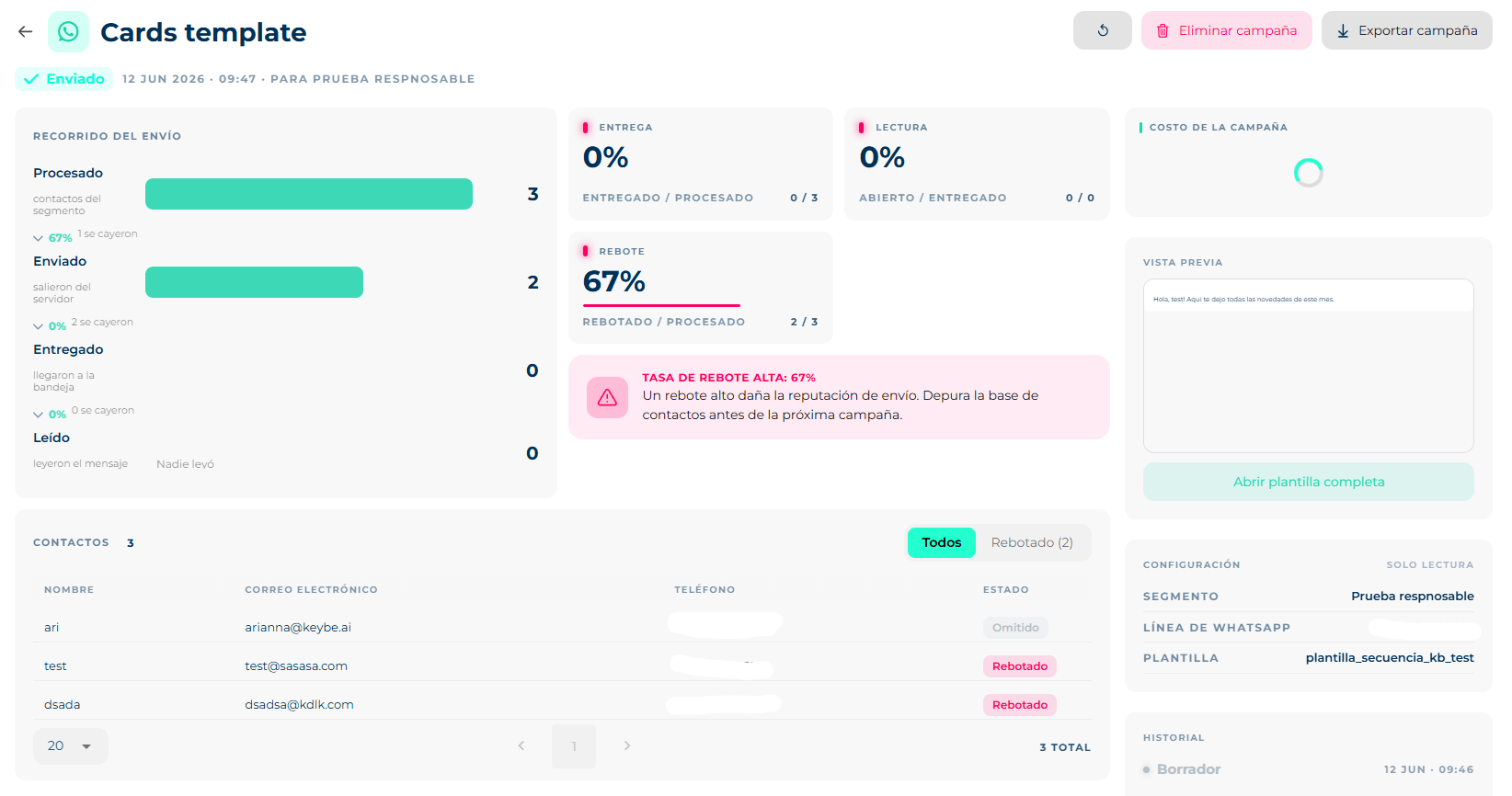
Clicking a campaign opens its detail: metrics and journey on the left, preview, configuration and history on the right. At the top, the actions that match its status.
Review before scheduling
While the campaign is in Draft or In review you can fix it. In the right panel, Configuration → Edit opens the same fields as the form (name, segment or file, and per channel: subject, sender, line, template). Save with Update campaign and then Confirm changes.
Why it stops being editable
Saving changes re-imports the contacts. That is why, from Scheduled onward, the configuration becomes read only: re-importing a campaign with a scheduled send would knock out its schedule. If you need to change something, cancel the schedule first.
Preview: shows the message as the customer will see it; Open full template expands it entirely.
Cost
The Campaign cost card starts empty: click Calculate cost. It shows the number of contacts, the cost per contact and an estimated Minimum / Maximum range (for email, also per open). If you edited the campaign, it asks you to update or confirm the changes before recalculating; if it is still importing, it asks you to wait.
The cost is an estimate: it may vary due to taxes, retries and rate changes.
Schedule or send
- With the campaign In review (or in draft), click Schedule campaign.
- Pick the date and Next.
- Pick the time and Next.
- Review the selected date and time and Confirm. The campaign moves to Scheduled and the list shows Goes out on….
A draft also has Send campaign, which sends it immediately.
While it goes out and after
| Action | When available | What it does |
|---|---|---|
| Cancel | Scheduled, Sending | Cancels the schedule or stops what is left to send. |
| Retry | Failed (campaign-level cause) | Attempts the send again. |
| Review error | Failed (account-level cause) | The red button means something in the account must be fixed — balance, line, rejected template — before retrying. The detail shows the error message. |
| Delete | Draft, In review, Sent, Failed | Deletes the campaign (asks for confirmation). |
| Export | Any | Downloads the campaign's contacts with their status. |
| Duplicate | Any | Creates a copy to resend without reconfiguring. |
Delivery journey
The funnel shows how many contacts passed each stage and how many dropped between one and the next:
Processed (segment contacts) → Sent (left the server) → Delivered (reached the inbox) → Opened (opened the email) → Clicked (clicked) — for email. On WhatsApp the last stage is Read (read the message). When a stage is zero it reads Nobody opened, Nobody clicked or Nobody read.
KPIs
| KPI | How it is calculated |
|---|---|
| Delivery | Delivered / Processed |
| Open | Opened / Delivered |
| Click | Clicked / Opened |
| Bounce | Bounced / Processed |
Below, the platform writes automatic insights when something stands out: High bounce rate, N messages were delivered and nobody opened them, N people opened and none clicked, or Good performance when click over open is healthy.
What to look at by number
High bounce → the list has bad numbers or emails: clean the segment in the CDP. Low open → the subject or the time. Low click with high open → the content or the button. One problem at a time.
Contacts
The Contacts tab lists every recipient with name, email, phone and their individual status (sent, delivered, bounced…). Useful to find a specific person and see what happened to their message.
History
In the right panel, History logs the campaign's status changes with date and time: created, contacts imported, scheduled, sent.