Smart Chat
Smart Chat is the unified conversation inbox: WhatsApp, Instagram, Facebook Messenger, web and SMS on one screen, with the agent answering first and your team taking over when needed. It is integrated with the CDP (every chat is a contact) and with Funnels (you create a sale from a chat).
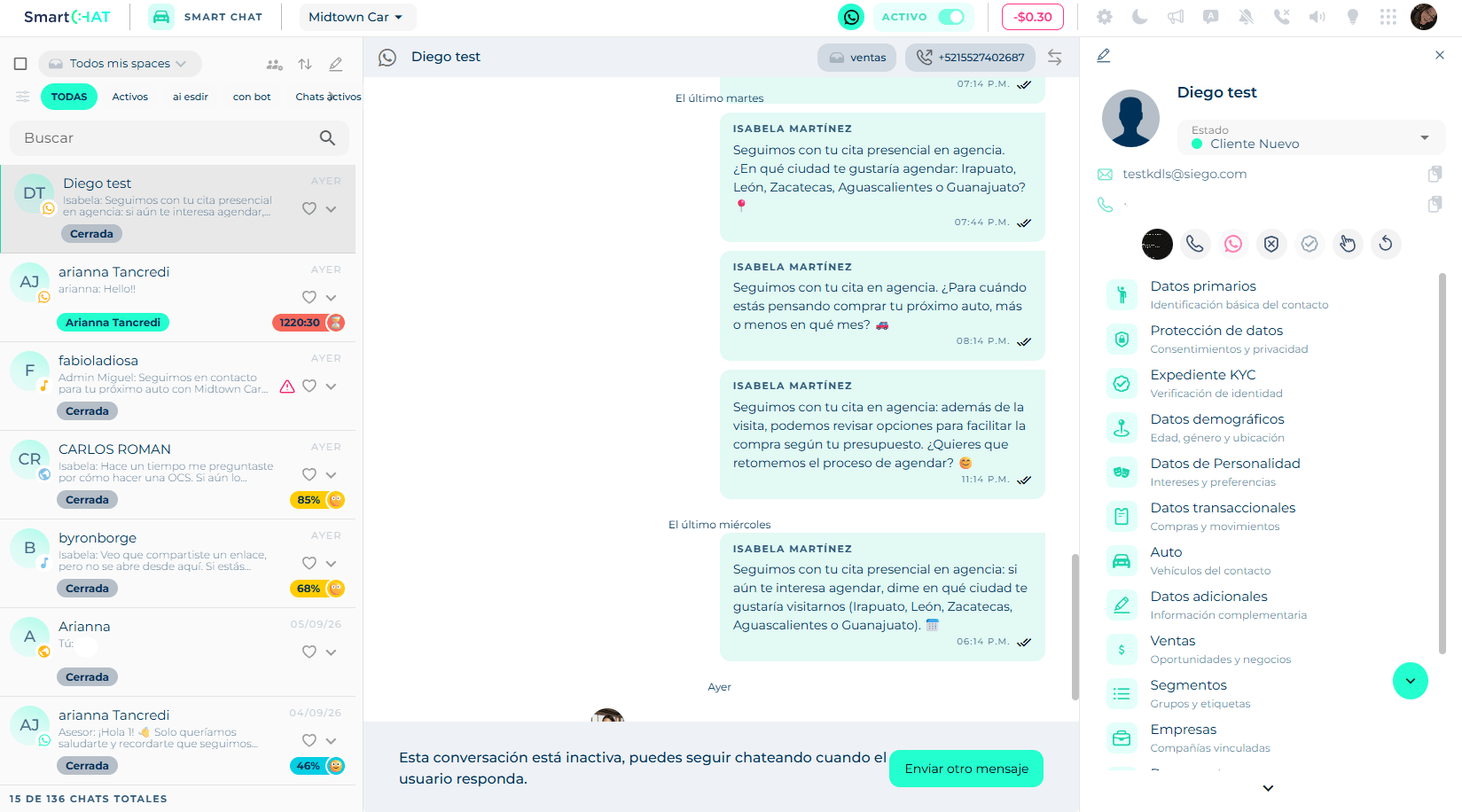
The screen
Chat list (left). Top to bottom:
- Checkbox to select all, the space selector (All my spaces or one in particular), and the Team, Sort and new chat (pencil) buttons.
- The filters button and the tabs: All, Active, With bot and your favorite filters.
- Search box.
- The rows (each row is one conversation). See below.
- At the bottom, the counter: 15 of 136 total chats.
Conversation (center). The header with the channel, the country flag, the contact's name, a chip with the space and another with the line it is handled from, and the Transfer and Close buttons. Below, the messages and the composer.
Contact card (right). Opens when you click the name. See Contact card.
Each row in the list
A row shows the contact's avatar with the channel icon they write from (WhatsApp, Instagram, Messenger…), the name, the last message and who wrote it, the date, a ♡ to mark it as favorite and a ▾ that opens the chat menu. Below, a status label: Closed, Waiting for advisor, Cold Lead or the name of the advisor who has it. On the right you may see a timer ⏳ — how long the customer has been waiting for a reply — or the emotion percentage detected in the conversation (plans from level 3 up).
The icon's color tells you which space it came from
While you are viewing All my spaces, each row's channel icon is painted in the color of the space that conversation belongs to. That way you tell at a glance what landed in Sales and what in Customer service, without opening each chat or switching filters.
The row's ▾ menu
The little ▾ arrow at the end of the row opens a menu with the actions you can take on that conversation without entering it:
| Action | What it does |
|---|---|
| Mark as unread / read | Toggles the "still to look at" mark. Nobody is notified: it is a note to yourself. |
| Select | Turns on multi-select: checkboxes appear on every row and a bar at the top. You tick several conversations (or the all checkbox) and apply Transfer or Close to all of them at once. Handy for clearing the inbox at the end of a shift. |
| Transfer | Hands the conversation to someone else, or back to the agent. A panel opens organized by space where you pick the destination: Any advisor (the first available one in that space takes it), the agent (the AI handles it again) or a specific advisor. From then on the conversation shows in the recipient's inbox and leaves yours. |
| Close | Marks the conversation as finished. It asks for a closing reason from a list your account defines (Sale made, General information…), the chat moves to Closed and stops counting as pending. Nothing is deleted: the history stays and the chat can be resumed when the customer writes again or someone takes it back. |
The same actions are available inside an open conversation, in the header buttons. See Handle a conversation.
The header
Four header buttons are the ones an advisor uses every day.
Active / Inactive
The switch shows your status. Active means you can receive assigned and transferred conversations; Inactive, that none reach you. If you stay idle for a while, the platform asks Are you still there? You are offline. Change your status.
Go inactive when you leave
If you leave while active, chats nobody will handle can be transferred to you. The agent's Transfer to advisor skill respects this status: it does not hand conversations to someone who is inactive.
Notifications
The bell turns desktop push notifications on or off: the alerts your browser shows when a message arrives, even with Smart Chat in another tab or minimized. The button states which it is — Push notifications enabled or Push notifications disabled — and the first time you turn them on the browser asks for permission.
If your browser or your company network blocks the push service, the platform tells you so and the button has no effect.
Calls
The phone opens Calls Configuration. The icon already tells you whether you receive calls, and hovering it shows your default line (or There is no line selected).
Inside you set:
- Incoming Calls: the switch that decides whether calls reach you at all.
- Purchased call lines (Incoming and Outgoing): which one receives your incoming calls.
- Dedicated call lines (Outgoing Only): your default line for calling out.
If there is none, There are no call lines available appears with the Acquire one here link. Mind the difference: a personal line cannot receive calls, only place them; to receive you need a purchased line.
Reminders
The light bulb opens Reminders: a board of tasks with a due date so you do not lose track of a customer ("call on Tuesday", "send the quote tomorrow").
It is organized in four columns by status: Created, In Progress, Expired and Completed. A reminder only moves to Expired when its due date passes without being completed.
At the top there is a Responsible filter — Mine (what you see by default), All Members or one specific person —, a search box and the Create reminder button.
Creating one asks for, all required: Title, Priority (Highest, High, Medium, Low, Lowest), Expiration Date, Expiration Hour, Responsible, Contact and Description.
Reminders for one specific customer are also created and viewed from their contact card.
System messages
Grey lines between messages tell the chat's story: Conversation taken by [advisor], [advisor] transferred the conversation to [advisor], Closed by [advisor] as [reason], Closed by automatic ending or No advisors available for this label. Reading them is the fastest way to understand how the chat got where it is.
How work is shared with the agent
- A customer writes through any channel. The agent replies first, with its personalization.
- If the agent detects a human is needed (or an intention says so), it transfers the chat: it becomes Waiting for advisor and is assigned to an active advisor.
- An advisor can also take any chat that is with the agent. The agent asks for a reason before letting go.
- When the matter is resolved, the advisor closes the chat with a closing reason. A closed chat can be resumed at any time.
In this section
- Filters and search: find the chat you need and create saved filters.
- Handle a conversation: take, reply, media, quick replies, transfer and close.
- Start a chat: message a customer first (WhatsApp templates) or chat with your team.
- Contact card: everything you know about the customer, without leaving the chat.