Start a chat
Most of the time the customer writes first. But sometimes you need to start: follow up a lead, announce that an order arrived, or talk to a colleague. The new chat button (pencil icon, above the list) opens three options.
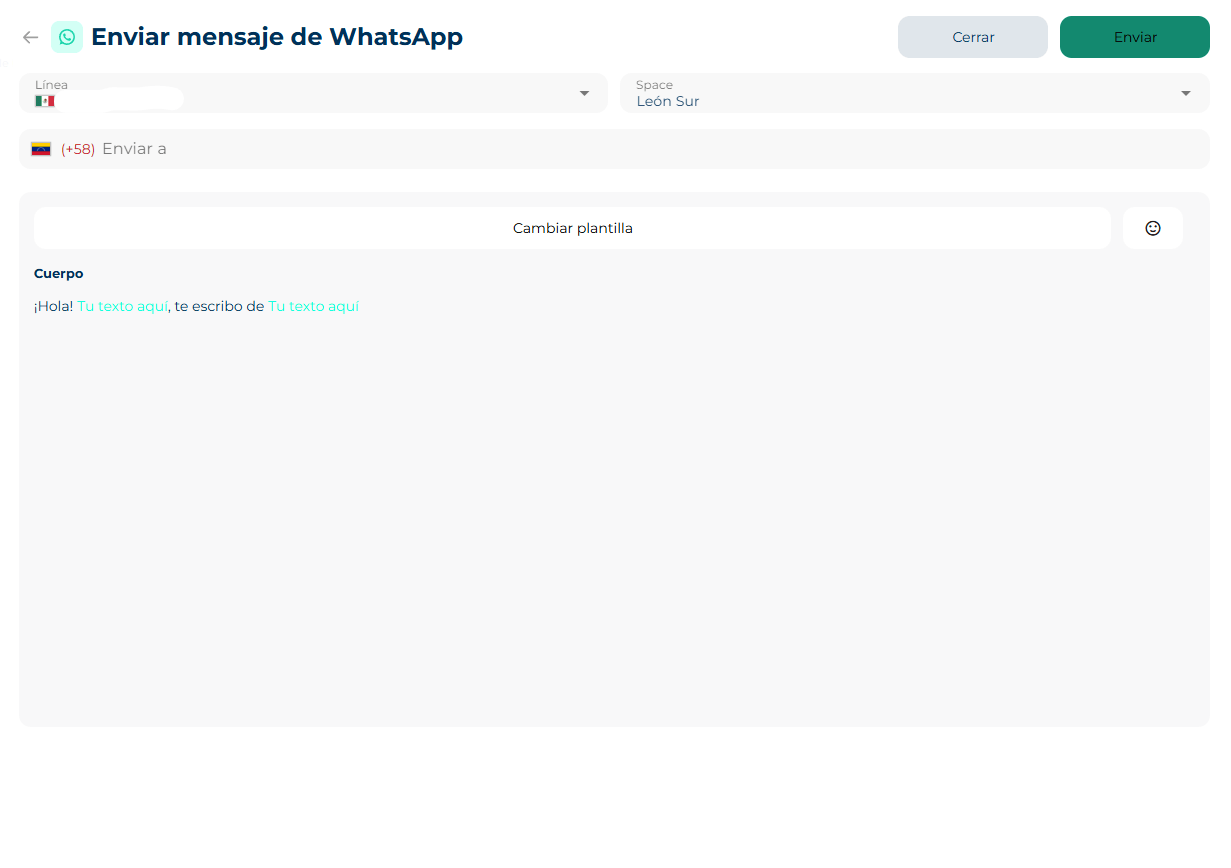
New WhatsApp message
By WhatsApp policy, the first message to a customer (or any message outside the 24-hour window) must be a template approved by Meta. Free text is not allowed.
- Pick the WhatsApp line you will write from and the space the chat will belong to.
- Set the recipient: search an existing contact or type the number with its country.
- Pick the template. You will see a preview with header, body, footer and buttons.
- Fill in the template parameters: each variable takes a contact field (first name, last name, email, phone, ID) or a custom text. If the template carries an image, video or document, upload it.
- Send. The chat appears in your list assigned to you.
It costs balance
Every template sent is deducted from the account balance. If there is not enough balance, the platform will not send. Templates are created and approved in Settings → Templates. From Outbound, the Manage templates button takes you there.
Sequence templates
Some templates are carousels (sequence cards): several cards with an image and a button each. Navigate with Previous / Next to complete each card.
New team message
Internal 1-to-1 chat with a colleague. Search the person and that is it: the chat appears under the Team view. Handy to coordinate without leaving Smart Chat; the customer never sees it.
New group message
Internal chat with several people:
- Type the group name.
- Search and add the members; the count of selected members shows below.
- Create group.
Groups also live under the Team view. From a team chat's header you can send a Meet link to switch to a video call.