Create and manage contacts
Most contacts come in on their own: every person who writes through a channel is created in the CDP. This page covers the manual side: creating one by hand, creating businesses and branches, and bulk actions.
Create a person
The Create contact button on the People tab opens the form. There are two versions depending on your account's sector.
Accounts in general
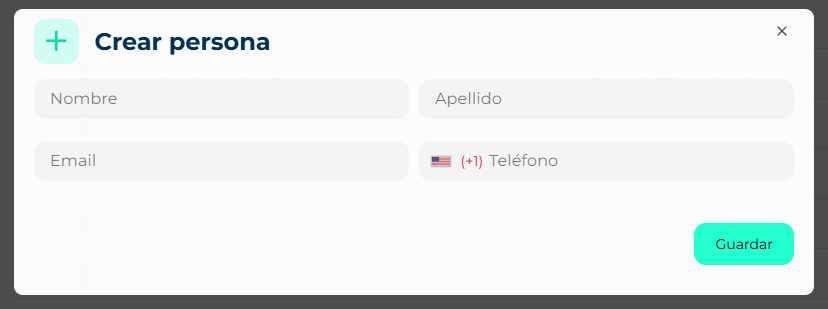
- Fill in First name and Last name (required), Email and Phone with its country.
- Save. The person appears in the table and in the All segment.
Automotive sector accounts
On dealerships the form is full screen and starts by checking whether the contact already exists, because the same customer usually arrives several times through different channels:
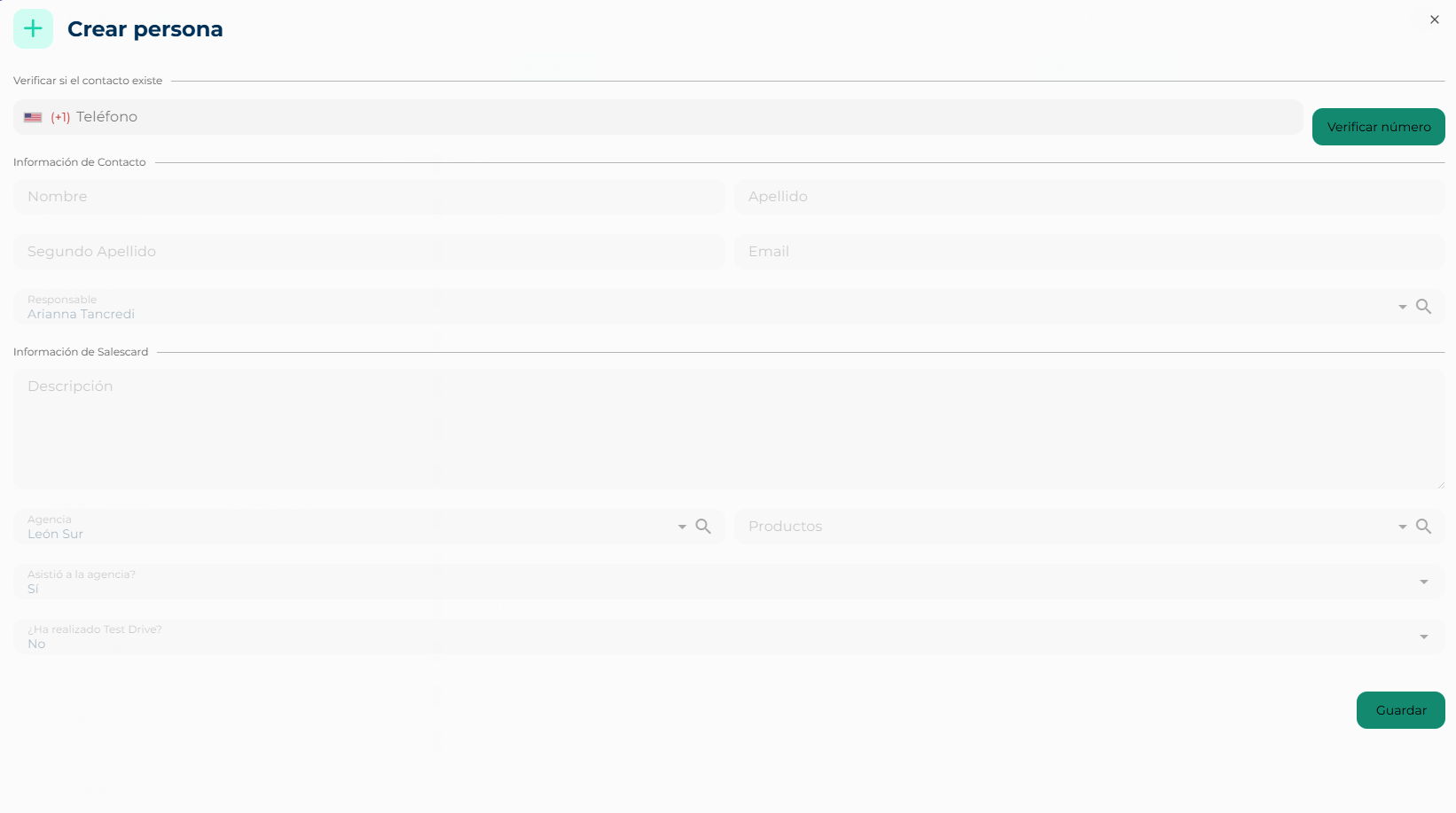
- Under Check if the contact exists, type the phone with its country and click Verify number. Until you verify, the rest of the form is locked.
- If the number already exists, Existing contact opens with its data and SalesCards. From there you can Edit the contact or pick the SalesCard to continue with. No duplicate is created.
- If it does not exist, Contact information unlocks: First name, Last name, Second last name, Email and Owner (the advisor in charge; required).
- Fill in SalesCard information: Description, Dealership (the branch/space, required if there is more than one), Products (one or several from the catalog, required), and the questions Visited the dealership? and Has taken a test drive?.
- Save. The contact and its SalesCard in the sales funnel are created together.
Why the phone first
In automotive the phone is the customer's key: the same number may have asked on WhatsApp, left a web form and visited the dealership. Verifying it first avoids three cards for the same person and keeps the SalesCard in one place.
Create a business or a branch
On the Businesses tab, the Create new… button offers:
- Business: Name (required), Tax ID, Email and Phone.
- Branch: Name (required), the Business it belongs to (search by name; required), Email and Phone.
You can also create a branch from a business row with the + button. Branches show on their own tab and by expanding the business with ▾.
Edit a contact
Click the row and the card opens on the right. It is the same one as in Smart Chat: quick actions (owner, call, block, verify, touches, reload) and sections for data, sales, notes, reminders and more. See Contact card. The row's Go to chat button opens its conversation.
Bulk actions
Tick the checkboxes of several rows (or the header one for the whole page) and the header shows:
- Edit contact status (2 or more selected): assigns the same status to all — for example moving twenty leads to Customer.
- Merge contacts (2 or 3 selected): joins duplicate cards of the same person into one, keeping data, chats and history. You choose which one stays as primary.
Merging cannot be undone
Before merging, open the cards and confirm they are the same person. If in doubt, use the phone or email filter to compare.