General
The sections in Settings' General group: your user, the company data, who works in it, where it serves from and how information is protected.
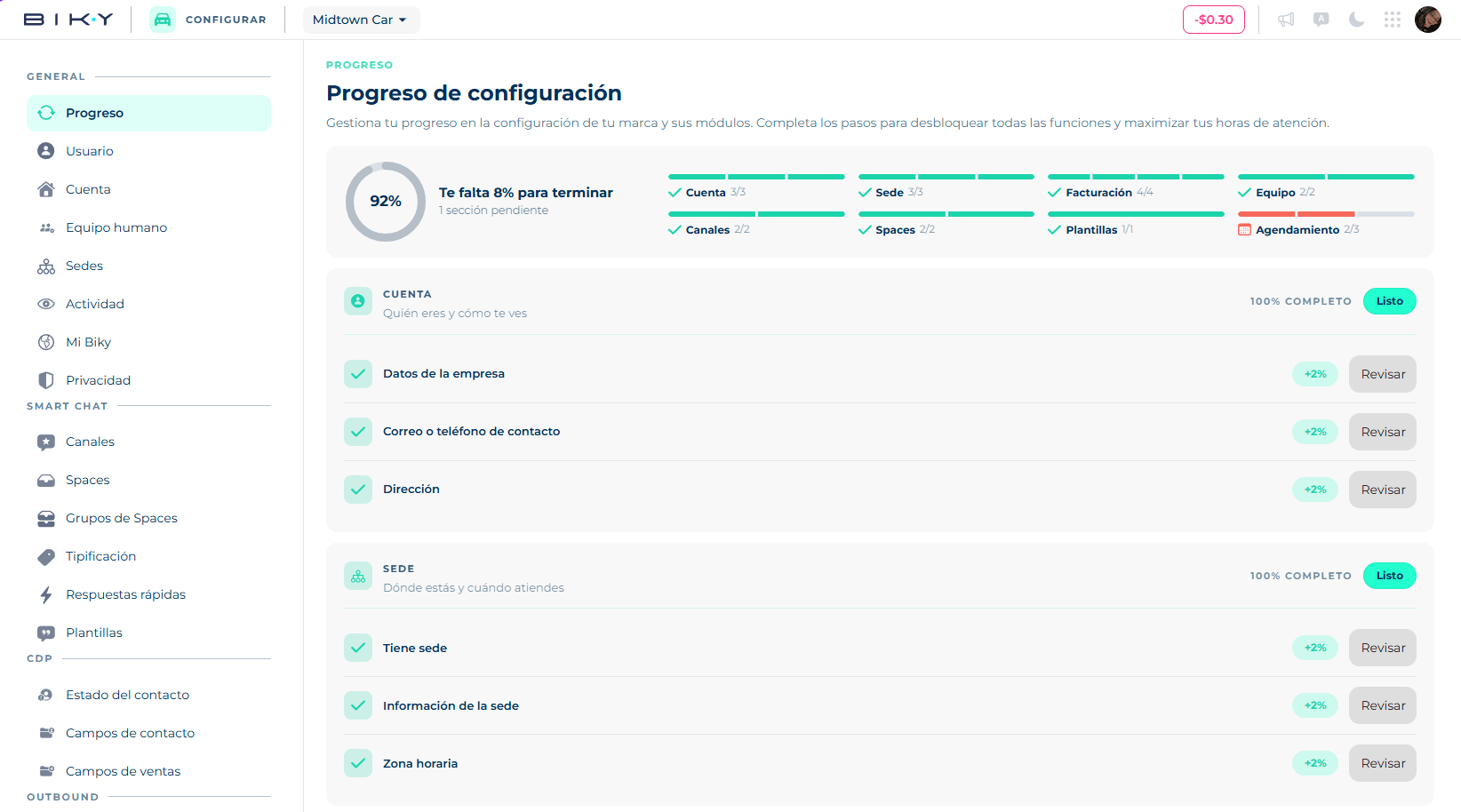
Progress
The landing screen. Manage your progress in configuring your brand and its modules. Complete the steps to unlock all features and maximize your service hours.
It shows a global percentage (You have 40% left · 5 pending sections) and eight groups, each with its progress:
| Group | What it covers |
|---|---|
| Account | Who you are and how you look: company data, contact email or phone, address. |
| Branch | Where you are and when you serve: having a branch, its information and the time zone. |
| Billing | So we can charge you without interrupting service: legal name and tax ID, billing address, active plan, billing contact. |
| Team | Who serves with you: having members and them having a role. |
| Channels | Where people write you from: connect at least one channel. |
| Spaces | How conversations are distributed: active inbox and agents in the inbox. |
| Templates | The messages you open conversations with: having a Meta-approved template. |
| Scheduling | So people can book without writing you: active advisors, active schedules, synced calendar. |
Each task shows how much it adds to the percentage and a button: Complete if missing, Review if done. Pending ones explain why they matter (Without connected channels Biky has no conversations to handle) and exactly what is missing (Missing: WhatsApp). When a group reaches 100%, it is marked Ready.
Start with Channels
Groups do not weigh the same. Channels is worth 10% per task and is the biggest blocker. Then Scheduling (8% per task) and Billing (5%).
User
User preferences — Manage your profile, language, security and usage preferences.
This is your personal configuration, not the company's: it affects only you.
| Block | What it holds |
|---|---|
| Account | Personal information (your data and photo) and Password. |
| Preferences | Platform Language, Mode (light or dark) and notification Sound. |
| Security | Connection history: where and when your user was signed in from. If you see an access you do not recognize, change the password. |
| Smart Chat | My quick replies: your own, on top of the ones the account shares. |
Account
Company preferences — Configure your brand information to improve your experience in Keybe.
The company data. It is what the agent uses to know whose name it speaks in, and what sets the defaults for the whole operation.
- The brand's profile picture and Account name (required), Company name and Description.
- Contact Email (required) and Phone.
- Time zone (required): service hours and Calendar appointments depend on it.
- Currency (required): the one Catalog prices and Funnels amounts are shown in.
- Language, Country code and Country (required).
- App UUID and Categories: your account's identifier and its KB System. Not edited here; Keybe sets them.
Time zone and currency are set once
Changing the time zone shifts how every schedule already loaded is read, and changing the currency does not convert existing amounts. Get them right from the start.
Team
The Team list: the people working in the account.
- Two tabs: Active accounts and Inactive accounts.
- Invite to team adds someone new: they get an email to complete their registration.
- The table shows Name, Phone, Type and Status, with a switch to activate or deactivate the person. There is no delete button: someone who leaves gets deactivated.
- The See permission types link opens the detailed explanation of each role.
Deactivating someone who leaves beats deleting them: it keeps the history of their conversations and sales.
How to add someone to the team
Inviting is one click; what decides whether the person can actually work are the three steps that come after. An invitation with no type and no spaces leaves someone staring at an empty screen.
- Invite the team and enter their email. They get a message to complete their registration; until they do, they show up as pending.
- Assign their Type. That is the permission: it decides what they see and what they can do. The table below spells out each one's scope.
- Switch on the Spaces they will have access to, in the block at the end of the form. This is the step that gets forgotten most, and without it the person sees no conversations at all.
- Pick their Position, which describes their actual job and grants no permissions.
- If it applies, turn on Assistant mode.
When someone leaves, deactivate them with the switch instead of deleting them: it keeps the history of their conversations and their sales.
Type: what each person can do
The Type field is the role, and it decides which modules the person sees and what they can do in each one. Inviting or editing someone offers four types: Admin, Agent, Coordinator and Trainer.
| Type | In one sentence |
|---|---|
| Agent | Serves customers. Works only with their own things: their conversations, sales cards, appointments and metrics, within the spaces assigned to them. |
| Coordinator | Supervises a team. Sees and distributes the work of their spaces, can look at any advisor's inbox and uses almost every module, but does not configure the account. |
| Trainer | A profile meant for reviewing conversations and improving the AI agent. In Smart Chat and CDP they work with the same scope as a coordinator. |
| Admin | Runs the whole account: every module, all of Settings and every space. |
There are also two profiles that are not picked as just another type:
- Owner: the account's owner. An admin marked as owner, and the only one who can edit the Billing information. There is one per account; to hand ownership to someone else, ask Keybe.
- Account Manager: an admin who manages several accounts at once, typical of groups, brands with a dealer network, or agencies. Keybe assigns it.
Which modules each type sees
| Module | Agent | Coordinator | Trainer | Admin |
|---|---|---|---|---|
| Smart Chat | ✅ | ✅ | ✅ | ✅ |
| CDP | ✅ | ✅ | ✅ | ✅ |
| Funnels | ✅ | ✅ | ✅ | ✅ |
| Calendar | ✅ | ✅ | ✅ | ✅ |
| Metrics | ✅ | ✅ | ✅ | ✅ |
| Outbound | — | ✅ | — | ✅ |
| Flows | — | ✅ | — | ✅ |
| Catalog | — | ✅ | — | ✅ |
| Biky admin | — | Shows up, but can't get in | — | ✅ |
| Billing | — | ✅ | ✅ | ✅ |
| Settings | Only their User | Only their User | Only their User | ✅ Everything |
Scoreboard shows up only in automotive accounts, for every type.
What non-admins see in Settings
Agents, coordinators and trainers can open Settings, but they only see their own User section: profile, password, language, mode, sound, connection history and their quick replies. Agents and coordinators also get access to their Scheduling. The rest of the menu (team, channels, spaces, templates, privacy…) is admin-only.
What they can do in each module
Smart Chat
| Agent | Coordinator | Admin | |
|---|---|---|---|
| Spaces in the selector | Only their own | Only their own | All |
| Which conversations they see | Only those assigned to them | All of their spaces', and any advisor's inbox with Filter by advisor | All of the account's, also with Filter by advisor |
| Search | Only in their chats and the ones they closed | In every chat | In every chat |
| Filters All chats, Waiting for attention, Spam, With KB Flows bot, Closed by AI | — | ✅ | ✅ |
| By advisor section when creating a filter | — | ✅ | ✅ |
| Transfer and Close, one or several at once | ✅, but without the Any advisor option | ✅ | ✅ |
| Take conversation | ✅ | ✅ | ✅ |
| Sent to top up when there is no balance | — | — | ✅ |
Only the person assigned to a conversation can write in it; everyone else sees it with the composer locked until they take it. The trainer sees the inbox and filters like a coordinator, but without Filter by advisor.
CDP
| Agent | Coordinator and trainer | Admin | |
|---|---|---|---|
| People | All | All | All |
| Businesses and Branches | Only those they are Responsible for | All | All |
| Filters Responsible, Is on the team and Is active on the team | — | ✅ | ✅ |
| Import | — | ✅ | ✅ |
| Create contact, Edit contact status, Merge contacts | ✅ | ✅ | ✅ |
| Send Outbound from a segment | — | ✅ | ✅ |
| See phone and email | Depends on Privacy | Depends on Privacy | Always |
Funnels
| Agent | Coordinator | Admin | |
|---|---|---|---|
| Which sales cards they see | Only their own: the Responsible filter is locked to them | Their spaces' by default; they can change the filters | All |
| Spaces when creating a sales card | Only their own | Only their own | All |
| Create funnels, steps and sales cards; move and delete sales cards | ✅ | ✅ | ✅ |
Funnels marked Default cannot be edited or deleted, whatever the type.
Calendar
| Agent | Coordinator and admin | |
|---|---|---|
| Which schedule they see | Only their own; no Advisor selector | Any advisor's, or All advisors |
| Availability | Configures only their own | Configures any advisor's |
| When creating an appointment | The advisor is them and cannot be changed; they only search contacts they are responsible for | Pick the advisor and any contact |
| Create branch from the calendar | — | ✅ |
Metrics
| Agent | Coordinator | Admin | |
|---|---|---|---|
| Which data they see | Only their own: no Agent or Agent type filters | Space filter with their spaces; can pick any advisor | Everything |
| Tabs (Sales, Leads, Agents, Marketing…) | All | All | All |
The Download report button does not depend on the type: Keybe enables it per account.
Outbound
| Coordinator | Admin | |
|---|---|---|
| Spaces and WhatsApp lines for a campaign | Only their spaces' | All |
| Create, edit and send campaigns | ✅ | ✅ |
A campaign can only be edited while it is a draft or in review; after that it is read only for everyone.
Catalog and Flows: whoever gets in uses them fully. The exception is Default catalogs in automotive accounts, where Add to catalog and Add full catalog are admin-only.
Biky admin
- Agents and coordinators see a message saying the section is not allowed for their type of user.
- The admin configures personality, appearance, knowledge, skills, intentions, simulator and resources.
- Only the admin turns on and configures the Quotes skill, and marks Improvements transfers as Improved or To improve. Everyone else sees them read only.
Billing
- The agent cannot get in: they see a message saying they do not have permission to access this content.
- Coordinator, trainer and admin see account, invoices, top-ups, subscriptions and payment methods.
- Billing information can only be edited by the owner. Everyone else sees a notice that only the application's owner can edit it.
- The balance in the top bar is seen by the admin.
- If the account gets blocked for payment, admin and coordinator see the options to top up or pick a plan; everyone else sees Restricted content and a pointer to talk to the administrator.
Settings (admin only)
- Sees the full menu: General, Smart Chat, CDP and Outbound.
- Invites and assigns the Admin, Agent, Coordinator and Trainer types.
- Cannot edit other admins. Opening one shows a notice that you cannot update users with your same role or a higher one. They can edit themselves.
- In Typification, Quick replies and Contact status, only the admin has multi-select for bulk deleting.
- In a protected space, tags are edited by the admin and the trainer.
The member switches
When editing a member, these switches appear depending on the case:
| Switch | What it does | Who turns it on |
|---|---|---|
| Is owner | Hands ownership of the account to that person. | Keybe, at the account's request. |
| Assistant mode | Enrolls that person's WhatsApp so they can message the AI agent as an internal assistant. | The admin. It only appears if the plan includes it and assistant mode is on in Biky admin. |
And below, the Spaces block, where you turn on one by one which ones they can access. For agents and coordinators, that is what decides which conversations, sales cards and metrics they see.
The role is not a detail
Getting the Type wrong is the most common cause of "nothing shows up for me" — an agent nobody assigned spaces to sees an empty inbox — or of someone seeing what they should not. Check it before the person starts working, not after.
Position: the actual job, by industry
Position is different from Type: it grants no permissions, it describes the job the person holds in your company, and the list of options changes with the account's KB System.
In an automotive account, for instance, the options are a dealership's: Sales advisor, BDC coordinator, Brand director, F&I, Sales manager, Used-car manager, General manager, Marketing manager, Administration manager, HR manager, Corporate governance and Other. In another industry's account, the list is that industry's.
Digital or floor
In automotive accounts every advisor also carries an agent type:
| Agent type | Who they are |
|---|---|
| Digital | Serves by chat, from the platform. |
| Floor | Serves in person at the dealership, on the sales floor. |
The distinction is not cosmetic: it is a filter of its own in Metrics, and the advisor performance tables tag each one with their type. Comparing a floor advisor's time to first reply against a digital one's says nothing; separating them does.
This field is not edited from the member form: Keybe sets it along with the rest of your industry's parametrization. If an advisor is classified as the wrong type and comes out looking bad in the reports because of it, ask your Keybe contact to fix it.
Branches
Company branches — Manage your physical branches: set their location and service hours.
Each branch has a location, time zone, schedules and labels. These are the ones offered when booking an in-person appointment, and the ones the agent filters when the matching skill is on.
- Branch list: search box, count and Create branch. The table shows Name and Labels.
- Branch import: to load many at once, if you run a large network.
Activity
User activities — Check the recent changes made by your team: updates, actions and owners.
The account's audit log: what was changed, by whom and when. Filtered by Module, Action, Owner, Severity and Date range, with a search box.
This is where you go when something stopped working overnight and nobody knows why.
My Biky
Company microsite — Design a microsite for your account with links to social media, custom buttons and direct access to your catalog.
A mini web page for your brand, hosted on its own address like yourbrand.biky.app. It works as the single link for an Instagram bio, a QR code or an email signature.
You build it with: the URL, a Title and Subtitle, the Logo, a Color, the Biky image, the channel the main button leads to, and whatever buttons you add with Add button (social media, catalog, anything).
Privacy
Contact information privacy — Configure your database's privacy.
Controls who can see and take your contacts' personal data. Three settings:
| Setting | What it does |
|---|---|
| Block right-click copy | Prevents selecting and copying text in the CDP contact list. Applies to every type, admins included. |
| Protected data display | In the CDP contact list, each row's data only shows when you hover over it, not the whole list at once. Applies to every type. |
| Block contact information by role | Choose who sees contacts' phone and email in CDP and Smart Chat: All roles; Administrators and coordinators (hidden from agents); or Administrators only (hidden from everyone else). Hidden means blurred and not copyable. |
The section includes a What is Habeas data? link explaining data processing consent, which is what the agent asks for when starting a conversation if it is enabled in Biky admin.
This is not paranoia
A team with high turnover and full access to phones and emails is the most common way a database ends up with the competition. If your operation uses temporary agents, restrict by role.