SalesCards
The SalesCard is the sales opportunity: who, what, how much, in which step and in whose hands. Clicking a card opens its panel on the right; Create new… → Sales Card or a column's Create button open the same panel empty.
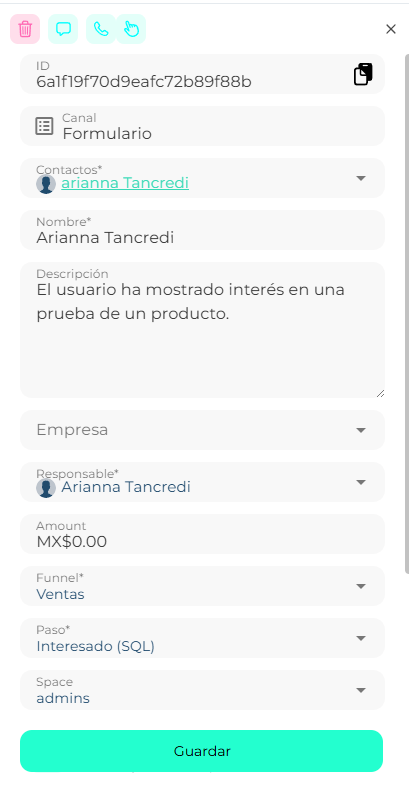
Main data
| Field | What it is |
|---|---|
| ID | Card identifier, with a copy button. |
| Channel | Where the opportunity came in (WhatsApp, web, form…). |
| Contacts * | The person (or people) from the CDP. If they do not exist, Create contact from the same selector. |
| Name * | Opportunity title. |
| Description | Free context. |
| Business | If the sale is B2B. |
| Owner * | The advisor in charge. |
| Amount | Amount in the account currency. |
| Funnel * and Step * | Where the card lives. |
| Space | The service area. |
Open sales
If the contact already has open SalesCards, when creating another the platform stops you with Update the existing sales first and lets you Move to Won, Move to Lost, Ignore or Create new Salescard anyway. It avoids duplicating opportunities for the same customer.
Sections
Below the main data, collapsible sections:
- Organization — Details and control of the sales process: priority, budget, win/lost reason, demo date.
- Marketing — Sources and campaigns: the UTM values (source, medium, campaign, term, content, partner) and Meta Ads data (ad, campaign, ad set, CPL…) the lead came with. Filled automatically when the source provides them.
- Billing — Billing and payment documents: quote number, status and date, invoice, financing and its date, down payment amount, sale date.
- Products — Associated products: search and add products from the Catalog. The same product cannot be repeated.
- [Your category] — Knowledge base: the fields specific to your account's sector (in automotive, Cars: model, trim, etc.).
- Activities — Activity and interaction history: the card's timeline, filterable by type, with every step change, its reason and who made it. Manual activities are logged from Touches.
- Scheduling — Scheduling and appointments: create a meeting (name, date, start time) synced with the Calendar. Requires the contact to have an email.
- Documents — Document file (only on accounts with Biky Trust): the documents the step requires.
Save at the bottom of the panel applies the changes. From the panel you can also Delete the SalesCard.
Move between steps
Drag the card to another column. Step change appears: Do you want to move the Sales Card from step X to step Y? → Confirm. Depending on the target step, it first asks for more:
| Target step | What it asks |
|---|---|
| Won | Win reason (or Other and you type it). In some sectors, amount and products. On confirm: confetti 🎉. |
| Lost | Lost reason (or Other). |
| Proposal / quote | Amount and business. |
| Demo / test drive | Demo date and owner. |
| Show / visit | Visit type. |
| Step with documents | Biky Trust panel with the phases Documents → Verification → Credit: upload what is missing or Continue later. |
On automotive accounts, moving forward may also show Who will drive this vehicle? to confirm or reassign the driver contact.
The reason matters more than the step
Win and lost reasons are what you will later read in Metrics to learn why sales fall through. Pick the real one, not the first on the list.
Temperature and SLA
On the card, the temperature dropdown (Cold, Warm, Hot, Urgent) changes without opening the panel. The SLA chip is calculated automatically: time since the last touch on the lead. If a card has been in Critical for days, either handle it or mark it lost.