Knowledge
Knowledge is what the agent knows about your business: history, founders, differentiators, frequently asked questions, policies and any fact it needs to answer well. Without knowledge, the agent chats; with knowledge, it advises.
You edit it under Biky admin → Knowledge. There are three tabs: PDF, Manual and Pronunciation.
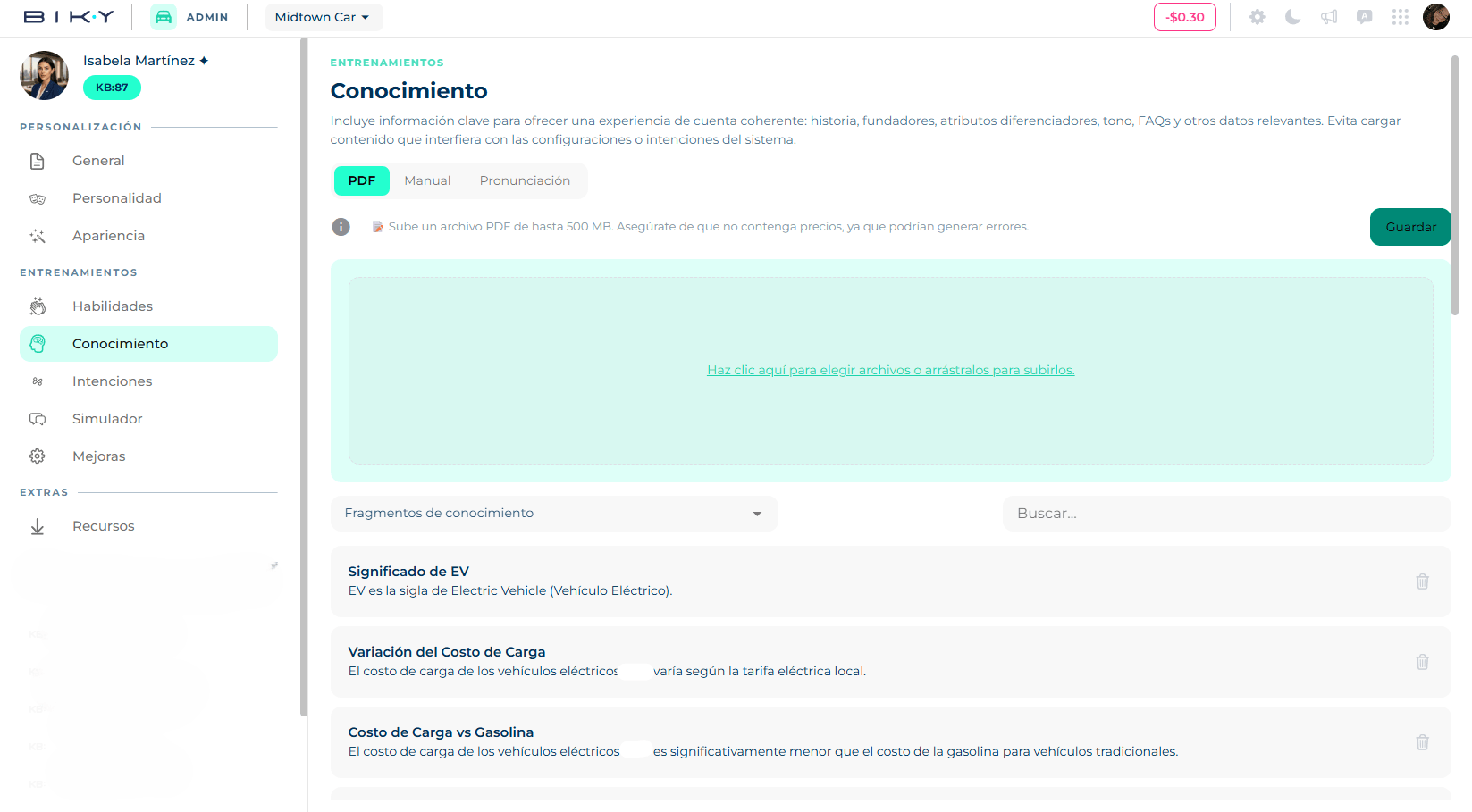
This is also where the agent's behavior instructions, sales rules and limits go: what it must do, what it must not do and how far it can go. Load them as a PDF or as entries in Manual.
What not to upload
Do not upload prices in PDFs: they change, go stale and cause errors. Prices live in the Catalog.
PDF
You upload documents and the agent processes them into knowledge fragments it consults when replying. Good for manuals, policies, company presentations, long FAQs.
- In the PDF tab, click the upload area or drag the files in. Only
.pdfis accepted, up to 500 MB each, and you can upload several at once. - Review the list of selected files; the × removes one before saving.
- Save. The files move to the list below with Pending status while they are processed.
Below the upload area there is a dropdown to view Knowledge fragments (what the agent extracted from the PDFs, with a search box) or PDFs (the files). In the PDF list, each one shows:
- Status: Pending (processing), Success (it is knowledge now) or Error (it could not be read; try a PDF with selectable text, not a scan).
- Published / Unpublished: a switch to enable or disable the document without deleting it. Handy for seasonal material.
- Download and Delete (asks for confirmation; removes the file and its fragments).
One topic per PDF
Short, focused documents produce better fragments than a 200-page PDF with everything mixed in. If you have a large manual, split it by chapter.
Manual
To add a single fact without building a document: opening hours, a returns policy, the answer to a frequent question.
- In the Manual tab, write a short Title that identifies the topic (for example Opening hours).
- Write the Description: the fact itself, up to 500 characters.
- Save. The fragment appears in the list below.
The list has a search box. Click a fragment to edit it in place (Save or Cancel) and use the trash icon to delete it.
Write it the way you would tell a new employee
"We are open Monday to Friday 8 to 6 and Saturdays 9 to 1. No service on Sundays, but the agent can take the order." works better than a table of hours.
Pronunciation
When the agent speaks (voice notes, calls), it mispronounces some words: acronyms, brands, proper names, foreign terms. Here you teach it how to say them.
- In Word, type the term as it appears in text (for example Keybe).
- In Pronunciation, spell it the way it sounds (for example kee-bee).
- Listen to check how it comes out with the selected voice.
- Save.
Saved pronunciations are edited directly in the list (they save as you type), each has its own Listen button, and they are deleted with the trash icon after confirmation.