Create a campaign
From Create new… you pick the channel. The three forms share the first part and differ in the second.
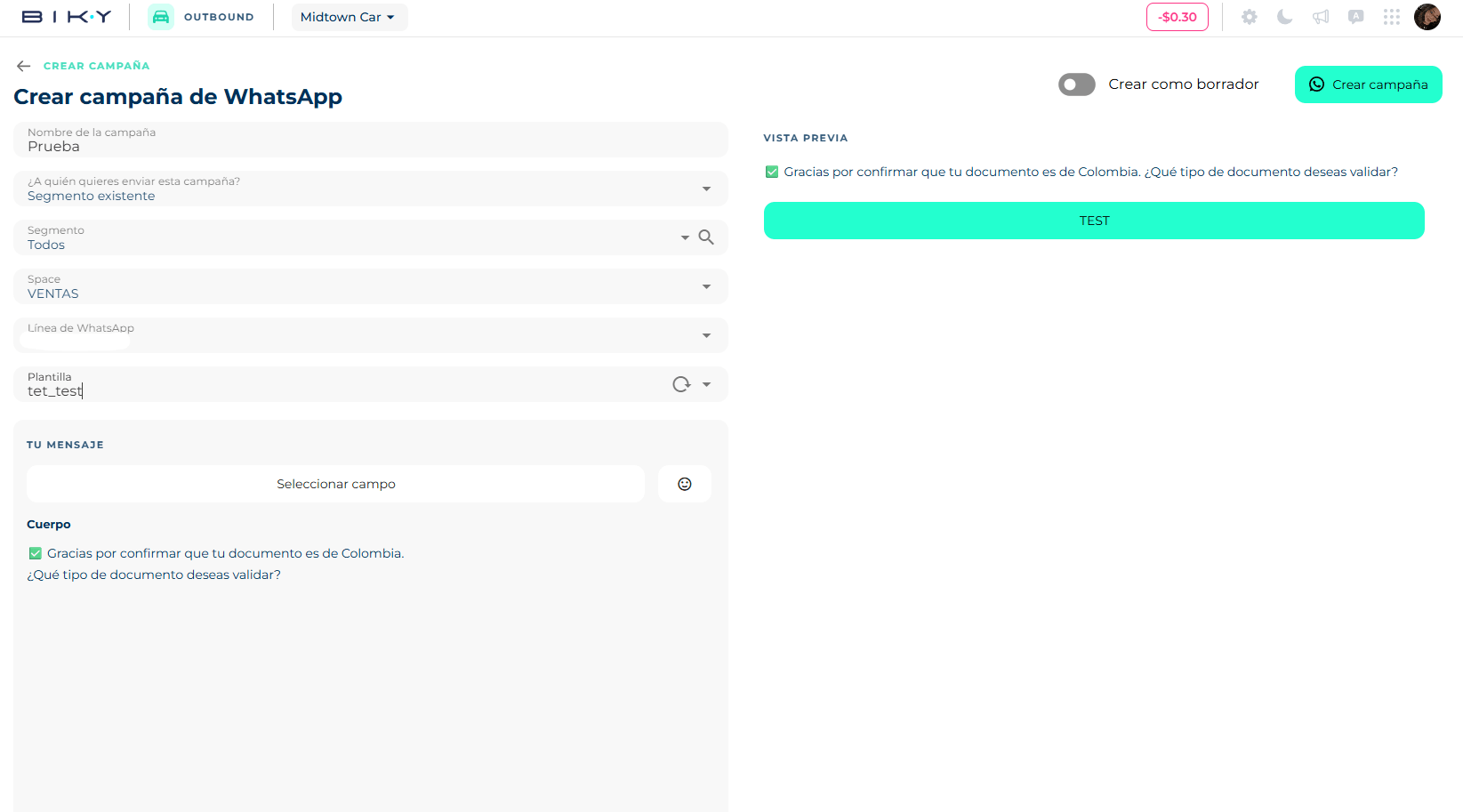
Common to all three channels
- Campaign name: how you will recognize it in the list.
- Who do you want to send this campaign to?
- Existing segment: search and pick a CDP segment. The usual option.
- File import: upload a file with the contacts (Add file). This will not create a segment in your CDP: the list is used only for this campaign.
- Fill in the channel-specific part (below).
- Decide whether to turn on Create as draft:
- Off: on creation the platform imports the contacts and the campaign moves to In review, ready to calculate cost and schedule.
- On: it stays as Draft, without importing contacts. Useful to leave it set up and decide later.
- Create campaign. The button enables when nothing required is missing.
Segment over file
If you will repeat the campaign, build the segment in the CDP and use it. The file is for one-off sends with a list you do not want to keep.
WhatsApp
- Space: the area the campaign goes out from.
- WhatsApp line: the sending number. Enabled after choosing the space.
- Template: a Meta-approved template of that line. If the one you need does not exist, Create template takes you to Settings. The preview on the right shows header, body, footer and buttons as the customer will see them.
WhatsApp does not allow free text in campaigns: everything goes out through a template. Templates are created and approved under Settings → Templates.
Email
- Sender name: what the recipient sees as "From".
- Send from email + Domain: you type the part before the
@; the domain is chosen among your account's verified domains. - Template: an email template of your account. How to create one: Email templates.
- Subject.
"You need to review this template first"
If the chosen template was never saved from the editor, the platform will not create the campaign and offers Go to template configuration: open it, review it and save. It is a guard against incomplete templates.
SMS
- Template (optional): pick an SMS template or write your own content in the composer, which lets you insert contact parameters (first name, last name, etc.).
If the SMS provider is under maintenance, choosing SMS campaign shows a notice with the affected date and hours.