Book a meeting
Book meeting — Find availability and book in seconds — searches the team's real open slots and creates the appointment. You also get there with the agenda's + Book button.
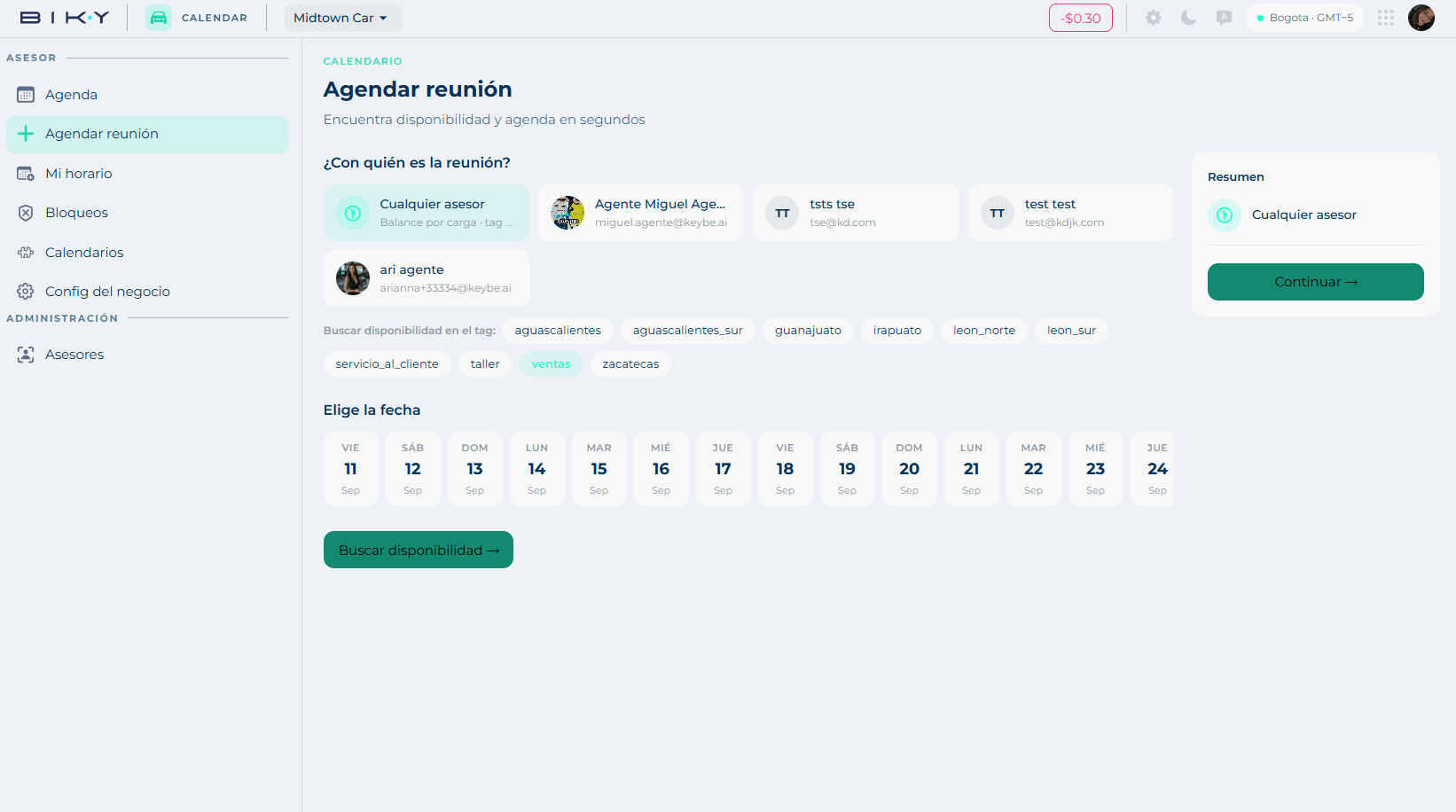
Step 1: with whom
Who is the meeting with? offers two paths:
- Any advisor — Load balancing · tag [name]: the platform picks among the available advisors of the tag, spreading the load. This is the recommended option: nobody gets overloaded and you do not lose appointments because one person is busy.
- A specific advisor — you pick them from the list, which shows name and email. Use it when the customer is already dealing with someone.
Step 2: the tag
Search availability in the tag filters by area or branch: sales, workshop, customer_service, and the per-branch tags (aguascalientes, guanajuato, irapuato, leon_norte, leon_sur, zacatecas…).
The tag defines who can take that appointment. If the customer wants to visit León Norte, the tag makes sure only advisors from there are offered.
Step 3: the date and the slot
Choose the date shows a strip with the next days. Pick one and click Search availability →.
Below, Available slots · [date] appears, with the duration and time zone in the corner (Duration 60 min · GMT−5). Slots come grouped into Morning and Afternoon, and each one shows the advisor who would take it:
10:00 - 11:00 · Agente Miguel Agente
Availability comes from crossing the weekly schedule of the tag's advisors, their blocks, the busy events of their connected external calendars and the appointments already booked.
Click the slot you want. The Summary panel on the right shows the chosen advisor, date and time. Continue →.
Step 4: details and confirm
Meeting details asks for the last bits:
| Field | What it is |
|---|---|
| Modality | In person or Virtual. |
| Address / Location | Only if in person: the branch, picked from a list. The full address is shown below. |
| Contact | Search a CRM contact… — the customer, from the CDP. The contact will receive the invitation and the reminders. |
← Back returns to the previous step; Confirm meeting creates it. At the bottom, the platform notes: Automatic reminders will be sent before the start.
The contact must exist in the CDP
The picker searches contacts already loaded. If the customer is not there yet, create them first in the CDP — that way the invitation and reminders reach the right person and the appointment is tied to their card.
Edit or cancel
From the Agenda, click a meeting to open it and change its status, reschedule or cancel it. A rescheduled appointment becomes Rescheduled; a cancelled one, Cancelled.