Billing
Billing is where your account's commercial side is managed: the contracted plan, the balance, the invoices and the payment methods. It is also where things get solved when something stops working "for no reason": it is almost always balance.
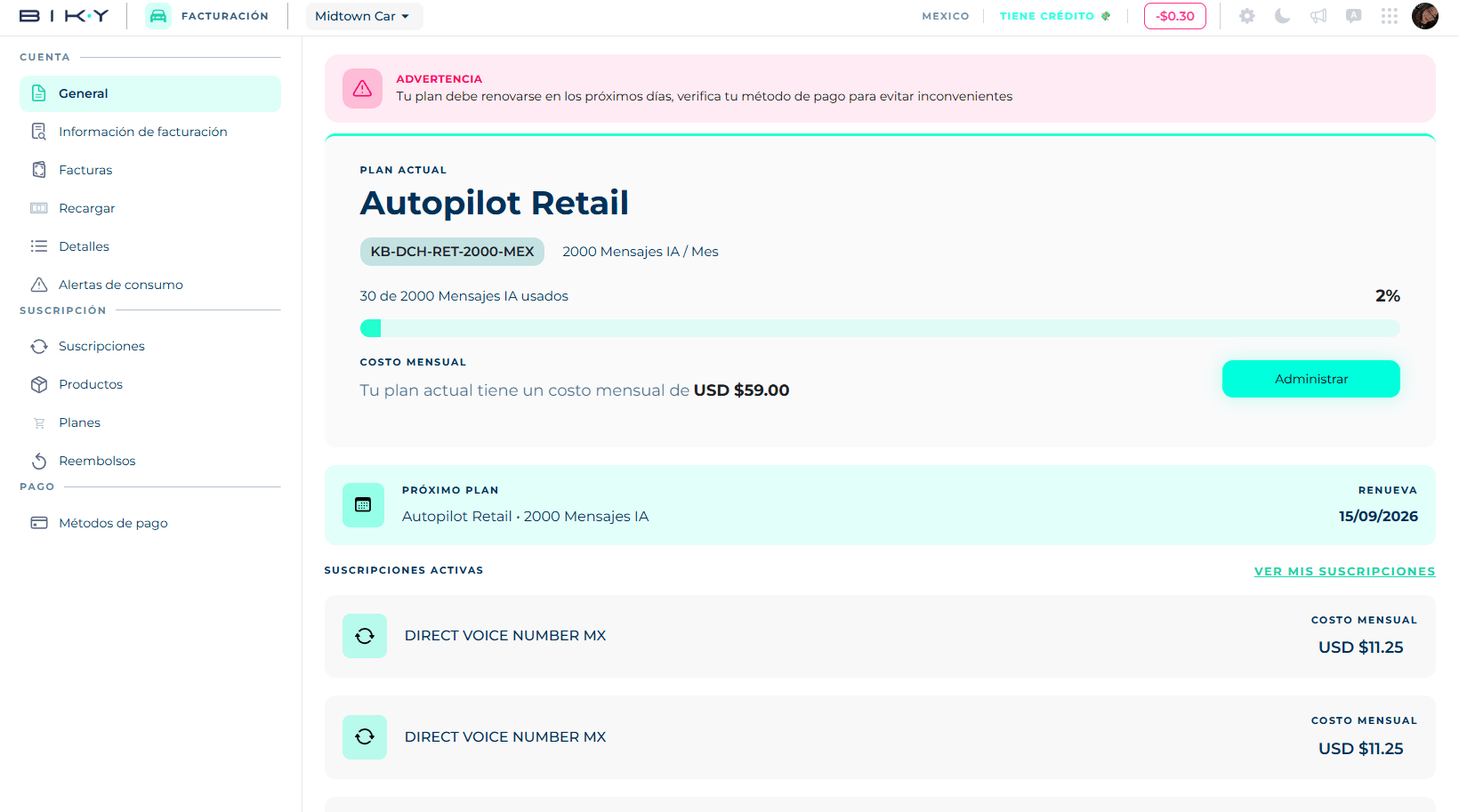
The side menu
| Group | Section | What is there |
|---|---|---|
| Account | General | Your current plan and consumption. |
| Billing information | The tax data your invoices are issued with. | |
| Invoices | All your invoices. | |
| Top up | Add balance. | |
| Details | The detail of each movement. | |
| Consumption alerts | Warnings when you approach a limit. | |
| Subscription | Subscriptions, Products, Plans, Refunds | See Plans and payments. |
| Payment | Payment methods | Your cards. |
At the top, next to the account name, you see the country and the current balance.
General
The main card shows:
- The current plan with its name and code, and how many AI chats per month it includes.
- A consumption bar: 0 of 88 AI Chats used · 0%.
- The plan's monthly cost.
- Buy Plan, which takes you to Plans.
If you are in a trial period, below it shows how many days you have left.
Balance stops the operation
Without enough balance you cannot take conversations in Smart Chat, send campaigns from Outbound, or send WhatsApp templates. If the team reports they "cannot take chats", check the balance before anything else.
Billing information
Complete your billing information to ensure the continuity and quality of your service. All fields are required:
Company name, Tax ID, Email, Phone, Country, Province, City, Postal code and Address. Save applies the changes.
This is the data that appears on the invoice, so it has to match your tax registration.
Invoices
Check and organize all your invoices in one place, always clear and accessible. The list is paginated and each invoice can be opened and downloaded as PDF. If there are none yet, it says No invoices available.
Top up
Top up your balance quickly and easily to keep your service running without interruptions.
- Type the amount in USD you want to add.
- Select the payment method — a card already saved, or Add new credit card.
- Check the amount in the right panel and click Pay.
Funds do not expire with the month
The funds you add are independent of your plan. If the month ends, they are automatically carried to the next one. In other words: topping up extra is not lost.
Details
Review the specific information of your purchases and movements with full transparency. It is the statement: every consumption and top-up, with its date and amount, and the total at the bottom. If there are no movements, it shows No payment details found.
Consumption alerts
Set up warnings so you find out before running out of balance or chats, instead of discovering it when the team cannot work.
Set the alert at 20%
An alert at 20% remaining gives you room to top up without rushing. At 5% it is already late: the top-up may take time to credit and meanwhile the operation is stopped.
In this section
- Plans and payments: choosing a plan, subscriptions, add-on products, refunds and payment methods.